
Comparison OKI C532DN vs OKI C332DN
Add to comparison | 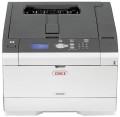 | 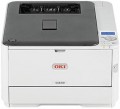 |
|---|---|---|
| OKI C532DN | OKI C332DN | |
from £51.36 | from £299.99 | |
| TOP sellers | ||
| Print formats | A4 | A4 |
| Print type | lED | lED |
| Output type | colour | colour |
| Number of colors | 4 | 4 |
Print | ||
| Max. resolution | 1200x1200 dpi | 1200x600 dpi |
| First page print time | 8 с | 9 с |
| Mono print | 30 ppm | 30 ppm |
| Colour print | 30 ppm | 26 ppm |
| Duplex printing |  | |
Printing supplies | ||
| Monthly resource | 60 K pages | 45 K pages |
| Mono cartridge resource | 1500 page | 1500 page |
| Colour cartridge resource | 1500 page | 1500 page |
| OPC drum resource | 30 K pages | 30 K pages |
| Cartridges | 4 | 4 |
| Cartridge model | 46490404, 46490403, 46490402, 46490401, 46490608, 46490607, 46490606 | 46508740, 46508739, 46508738, 46508737, 46508736, 46508735, 46508734 |
| High-capacity cartridge support | | |
Features | ||
| Data transfer | PC connection (USB-B) network connection (LAN) USB-A (for flash drives) | PC connection (USB-B) network connection (LAN) |
| Screen | monochrome | monochrome |
Hardware | ||
| Grammage (min) | 64 g/m² | 64 g/m² |
| Grammage (max) | 220 g/m² | 220 g/m² |
| RAM | 1024 MB | 1024 MB |
General | ||
| Feed tray | 350 sheets | 350 sheets |
| Output tray | 150 sheets | 150 sheets |
| Noise level | 54 dB | 52 dB |
| Power consumption | 670 W | 540 W |
| Dimensions (WxDxH) | 427x571x279 mm | 410x504x242 mm |
| Weight | 23 kg | 22 kg |
| Color | ||
| Added to E-Catalog | november 2016 | november 2016 |


Compare OKI C532DN and C332DN
You may be interested in
OKI C332DN often compared


Glossary
Max. resolution
The maximum resolution of the image to be printed. It is usually indicated by two numbers denoting the number of dpi (DPI) horizontally and vertical: 600x600, 1200x600, 1200x1200, 2400x600, 2400x1200, 4800x600, 4800x1200, 4800x2400, 5760x1440, 9600x600, 9600x2400. The detail of the image depends on this parameter - the higher the resolution, the more fine details the printer is able to convey and the better their image will be. High print resolution is important, first of all, when working with graphic material; low resolution is sufficient for high-quality text display. So
First page print time
The time from the receipt of a print command to the exit from the printer of the first page printed in black and white, in other words, how long after pressing the "Print" button, the user will receive the first page. Most often indicated for draft (fastest) print mode, higher quality will take longer. You should pay attention to this parameter if you often need to print small documents (on one or several pages) on the printer.
Colour print
Colour print speed provided by the printer. Usually, the specifications give speed at low quality, when performance is highest; on standard and especially high settings, the print speed can be noticeably lower, so it’s worth choosing with a certain margin. It is also worth considering that high speed significantly affects the price, power consumption and noise level. Therefore, it does not always make sense to chase maximum performance — for simple applications and small print volumes, a relatively slow and inexpensive device may be the best choice.
The "slowest" colour printers today are capable of delivering less than 10 pages per minute. A more decent value is considered 10 – 20 ppm, a speed of more than 20 ppm can already be called quite good, and in the fastest models this figure exceeds 30 ppm.
The "slowest" colour printers today are capable of delivering less than 10 pages per minute. A more decent value is considered 10 – 20 ppm, a speed of more than 20 ppm can already be called quite good, and in the fastest models this figure exceeds 30 ppm.
Monthly resource
The maximum number of pages the printer can print in a month while still operating at full capacity.
Cartridge model
The types of cartridges (both black and white and colour) used in the printer. Some printer models are able to work with "non-native" cartridges, but this feature usually refers to undocumented features, and the manufacturer's warranty covers only specific types of cartridges. So use "non-native" models with caution.
Data transfer
— Connection to PC (USB-B). Connecting to a PC via USB-B in printers means using the standard USB type B port found on the device body, which is used for data transfer from the computer. This port is usually used in wired printer models and connects to the PC with a USB-A to USB-B cable, where side A is inserted into the computer, and B into the printer. This type of connection provides stable communication, high data transfer speeds, and easy connectivity without network setup.
— Network Connection (LAN). The ability to connect to a local computer network via a standard LAN port (using an Ethernet cable). With such a connection, the printer becomes accessible to all computers on the network, which is very convenient for offices, coworking spaces, and other places where printing is used by different people from different computers. Note that the network connection can be accomplished either through one of the computers on the network or through a common router; in the latter case, the printer remains operational regardless of which computers on the network are currently on. Compared to another connection option — Wi-Fi — wired connection is less convenient due to the need to lay a cable; however, it is cheaper and the connection is maximally reliable.
— Wi-Fi. Wireless technology initially intended for working with computer networks, but nowadays also used for...direct communication between devices (Wi-Fi Direct see below). Typically, printers with Wi-Fi can work as network devices — when communication is via a local network, and all computers on the network have access to the printer; however, the ability for direct gadget connection is less common. Nevertheless, the specific functionality of Wi-Fi should be clarified separately in any case.
— Card Reader. A slot for reading memory cards, usually with a direct printing function (see above). In this case, this function is especially convenient because memory cards are widely used in modern photo and video cameras; thus, the card reader allows for quick and easy printing of captured materials — just remove the card from the camera and insert it into the printer. However, this function can also be useful for exchanging data with other devices — for instance, laptops; and on some printer models, it is even possible to work in an external card reader mode for a PC.
— USB-A. A full-size USB port that allows connecting various external peripherals to the printer. Most often used for direct printing from flash drives and other storage devices, but can also be used for other purposes — such as firmware updates, troubleshooting, etc. Do not confuse this function with connecting to a PC via USB-B, where the printer itself acts as a peripheral device.
— USB-C. A modern interface that replaces the classic USB-B port and provides a more compact, symmetrical, and reliable connection. This port allows quick document transfer from a PC or laptop, often without additional drivers, and is compatible with new devices including MacBook and ultrabooks. USB-C can also be used for connecting flash drives, phones, tablets.
— Bluetooth. A technology for direct wireless communication between various devices. In printers, it is mainly used for the traditional purpose — for receiving materials sent for printing from external devices. One of the advantages of such a connection is that it allows working not only with computers but also with portable gadgets like smartphones and tablets: built-in Bluetooth modules for such gadgets are almost mandatory, whereas wired connection methods are often not available at all. And it can even be more convenient to connect to a PC or laptop this way: Bluetooth requires no wires and confidently works at a distance of about 10 meters.
— NFC. A short-range wireless communication technology — up to 10 cm. In printers, it is usually used as an auxiliary function, to simplify Wi-Fi and Bluetooth connections: instead of manually setting up the connection, simply bring an NFC-enabled gadget close to the printer and confirm the connection. And in some models, materials can even be sent for printing immediately this way (by bringing the device to the printer); for this, usually, a branded application must be installed on the external gadget.
— Wi-Fi Direct. A feature found in models with built-in Wi-Fi modules (see above). Direct support allows other Wi-Fi devices (laptops, smartphones, cameras, etc.) to connect directly to such a printer without using a router and local network. This is especially convenient in the absence of network equipment, or if additional setup is required. The functionality of Wi-Fi Direct connection is generally similar to Bluetooth (see above); the main difference is that Wi-Fi provides faster and more reliable communication with greater range. This is particularly relevant for transferring large volumes of data — for example, sending large-format documents for printing. Additionally, this connection is better suited for direct printing from cameras — in such equipment, Wi-Fi is traditionally used for wireless connection.
— AirPrint. A similar feature to the one described above (Wi-Fi Direct). Allows connection to the device without involving a router. However, in this case, it refers to connecting Apple devices — iPhones, iPads, Mac laptops.
— Network Connection (LAN). The ability to connect to a local computer network via a standard LAN port (using an Ethernet cable). With such a connection, the printer becomes accessible to all computers on the network, which is very convenient for offices, coworking spaces, and other places where printing is used by different people from different computers. Note that the network connection can be accomplished either through one of the computers on the network or through a common router; in the latter case, the printer remains operational regardless of which computers on the network are currently on. Compared to another connection option — Wi-Fi — wired connection is less convenient due to the need to lay a cable; however, it is cheaper and the connection is maximally reliable.
— Wi-Fi. Wireless technology initially intended for working with computer networks, but nowadays also used for...direct communication between devices (Wi-Fi Direct see below). Typically, printers with Wi-Fi can work as network devices — when communication is via a local network, and all computers on the network have access to the printer; however, the ability for direct gadget connection is less common. Nevertheless, the specific functionality of Wi-Fi should be clarified separately in any case.
— Card Reader. A slot for reading memory cards, usually with a direct printing function (see above). In this case, this function is especially convenient because memory cards are widely used in modern photo and video cameras; thus, the card reader allows for quick and easy printing of captured materials — just remove the card from the camera and insert it into the printer. However, this function can also be useful for exchanging data with other devices — for instance, laptops; and on some printer models, it is even possible to work in an external card reader mode for a PC.
— USB-A. A full-size USB port that allows connecting various external peripherals to the printer. Most often used for direct printing from flash drives and other storage devices, but can also be used for other purposes — such as firmware updates, troubleshooting, etc. Do not confuse this function with connecting to a PC via USB-B, where the printer itself acts as a peripheral device.
— USB-C. A modern interface that replaces the classic USB-B port and provides a more compact, symmetrical, and reliable connection. This port allows quick document transfer from a PC or laptop, often without additional drivers, and is compatible with new devices including MacBook and ultrabooks. USB-C can also be used for connecting flash drives, phones, tablets.
— Bluetooth. A technology for direct wireless communication between various devices. In printers, it is mainly used for the traditional purpose — for receiving materials sent for printing from external devices. One of the advantages of such a connection is that it allows working not only with computers but also with portable gadgets like smartphones and tablets: built-in Bluetooth modules for such gadgets are almost mandatory, whereas wired connection methods are often not available at all. And it can even be more convenient to connect to a PC or laptop this way: Bluetooth requires no wires and confidently works at a distance of about 10 meters.
— NFC. A short-range wireless communication technology — up to 10 cm. In printers, it is usually used as an auxiliary function, to simplify Wi-Fi and Bluetooth connections: instead of manually setting up the connection, simply bring an NFC-enabled gadget close to the printer and confirm the connection. And in some models, materials can even be sent for printing immediately this way (by bringing the device to the printer); for this, usually, a branded application must be installed on the external gadget.
— Wi-Fi Direct. A feature found in models with built-in Wi-Fi modules (see above). Direct support allows other Wi-Fi devices (laptops, smartphones, cameras, etc.) to connect directly to such a printer without using a router and local network. This is especially convenient in the absence of network equipment, or if additional setup is required. The functionality of Wi-Fi Direct connection is generally similar to Bluetooth (see above); the main difference is that Wi-Fi provides faster and more reliable communication with greater range. This is particularly relevant for transferring large volumes of data — for example, sending large-format documents for printing. Additionally, this connection is better suited for direct printing from cameras — in such equipment, Wi-Fi is traditionally used for wireless connection.
— AirPrint. A similar feature to the one described above (Wi-Fi Direct). Allows connection to the device without involving a router. However, in this case, it refers to connecting Apple devices — iPhones, iPads, Mac laptops.
Noise level
Approximate noise level generated by the printer during normal operation. The decibels in which the noise level is expressed is a non-linear value, so it is easiest to evaluate this indicator using comparative tables. The quietest printers give out about 35 dB — this is the volume of a conversation in a whisper, such noise will not stand out even in a quiet library reading room. A volume of 40 dB approximately corresponds to a conversation at an average volume, according to sanitary standards, this is the upper limit of permissible constant noise in residential premises during the day. For offices, the border is slightly higher — 55 – 60 dB, this is the volume of a conversation in raised tones. And the most powerful and heavy models give out up to 70 dB — this is comparable to a noisy city street; if such a printer is planned to be used frequently, it is advisable to install it in a separate room.
In general, lower noise levels make the device more comfortable to use, but may affect performance and/or price.
In general, lower noise levels make the device more comfortable to use, but may affect performance and/or price.
Power consumption
The maximum power consumed by the printer during operation. The lower the power consumption, the less energy the printer consumes, the more economical it is. On the other hand, devices with lower power consumption are often less performant than their more high consumption counterparts. And for the same performance, a more economical printer is likely to cost more, but with heavy use, it can pay off in energy savings.