
Comparison Redragon Fizz Red Switch vs Redragon Visnu
Add to comparison | 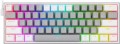 |  |
|---|---|---|
| Redragon Fizz Red Switch | Redragon Visnu | |
from £92.05 | Outdated Product | |
| TOP sellers | ||
| Connection | wired | wired |
| Cable length | 1.5 m | 1.8 m |
| Type | for game | for game |
| Form factor | 60% (mini) | 80% (TKL, without Numpad) |
| Layout | ANSI | ANSI |
Keyboard | ||
| Key profile | high | high |
| Key type | classic type | classic type |
| Switch technology | mechanical | mechanical |
| Switches | Outemu Red (Linear) | Outemu Blue (Clicky) |
| Switch resource | 50 million clicks | |
| Hot Swap |  | |
| Anti-Ghosting | |  |
| #KRO | N-KRO | |
| Fn key | | |
Features | ||
| Cyrillic colour | transparent | |
| Volume control | fn | fn |
| Game mode | | |
| Lighting | RGB | multicolor |
| Lighting effects | + | |
Connection and power supply | ||
| Cable | USB-A removable | USB-A |
| Port on the device | USB C | |
General | ||
| Skeleton keyboard | | |
| Waterproof | | |
| Size | 296x106x34 mm | 367x164x38 mm |
| Weight | 410 g | |
| Color | ||
| Added to E-Catalog | september 2022 | january 2020 |


Compare Redragon Fizz and Visnu
Keyboards Redragon Fizz Red Switch and Redragon Visnu have similar features, but there are key differences. Fizz uses Outemu Red (Linear) switches, providing a smooth keypress, while Visnu is equipped with Outemu Blue (Clicky) switches, offering tactile feedback. The cable length for Fizz is 1.5 m, while Visnu has a 1.8 m cable. Visnu also features a Skeleton design and water resistance, which Fizz lacks. Both keyboards have RGB lighting, but Visnu offers multicolor lighting, whereas Fizz supports RGB with effects.
You may be interested in
My comparisons
Redragon Fizz often compared


Glossary
Cable length
The length of the cable that the keyboard is equipped with for wired connection (see "Connection type").
When choosing this parameter, you should first of all take into account the distance from the device to the connection port: a cable that is too short may simply not reach the connector, and a cable that is too long may get confused at hand and create inconvenience. As for specific values, the reference length is 1.8 m. However, there are cables both shorter and longer.
When choosing this parameter, you should first of all take into account the distance from the device to the connection port: a cable that is too short may simply not reach the connector, and a cable that is too long may get confused at hand and create inconvenience. As for specific values, the reference length is 1.8 m. However, there are cables both shorter and longer.
Form factor
— 100% (full-sized). Classic layout with 104/105 keys featuring a full NumPad, dedicated F1–F12 row, and navigation cluster including Insert/Delete, Home/End, PgUp/PgDn; this version is valued for its familiar geometry, typing speed, and ease of frequent number entry, making it optimal for work in Excel, accounting, IDEs, and editing programs, while in games, the NumPad is often used for binds and macros; compared to TKL/80% without a numeric block, as well as 96% and 1800-compact, the 100% format offers maximum comfort and requires less retraining, but takes up more desk space and pushes the mouse further away, so for compact workplaces, it might be wiser to consider smaller formats.
— 1800 (compact full-sized). A full-featured layout with a numeric block but in a narrower body: the NumPad is shifted closer to the main field, and navigation is often placed above it or compacted next to the arrow keys. It feels like "100%", but is shorter by a few centimeters, so the mouse is closer to the center, offering more comfort for wrists. Compared to TKL, you retain fast number entry, and against 96%, you gain a slightly more "airy" geometry with clear orientation. Note the non-standard sizes of some keys and the right block, which sometimes require special keycap sets. This format is convenient for Excel, accounting, IDEs, and editing, while offering gamers the NumPad for macros while saving desk space.
...r>
— 96% (compact full-sized). Keyboards that preserve all key zones of 100% (F1–F12 row, arrow keys, navigation, and NumPad) but place them in a tight "grid" layout, almost like TKL in width. The numeric block is shifted closer to the main area, while Insert/Home/End and PgUp/PgDn are often reduced to 1u and grouped above the arrows or next to the NumPad. Compared to the 1800 format, 96% is even more compact and visually "smoother," and against TKL, you do not lose the speed of number entry. Note the possible non-standard sizes of the right shift, zeros, and plus on the NumPad, requiring a more selective keycap choice. This format is chosen for Excel and accounting, editing and coding, while gamers use the NumPad for macros, gaining maximum functions with minimal table width.
— 80% (TKL, without Num-block). A full-featured keyboard without a numeric block: retains the F1–F12 row, arrow keys, and navigation Insert/Delete, Home/End, PgUp/PgDn, but is considerably narrower, bringing the mouse closer to the center, which is easier on the shoulders and wrists. Gamers and developers favor this format: there’s more desk space, while familiar keys and hotkeys remain in place. Compared to 100%, you only lose quick number entry, which can be supplemented with a separate wireless NumPad. In comparison to 75%, TKL is more readable and "airy" thanks to its separate navigation block; unlike 96%, it is more compact for mouse grip, though lacking a NumPad. The 80% (TKL) format is optimal for FPS, work in IDEs, editing, and everyday office tasks where numbers aren’t entered continuously.
— 75% (compact TKL, without Num-block). "Almost TKL," where all main keys are within reach, but the body is shorter by several centimeters due to a tight "staircase" arrangement of arrows and navigation. Compared to 80%, it decreases the distance between hands and mouse, enhancing ergonomics for prolonged use, and relative to 100% and 96%, you lose only the numeric block, gaining space for the mouse and a more neutral shoulder posture. This format is chosen for IDEs and design packages, FPS and MOBA, mobile setups with narrow desks, when numbers are entered infrequently or supplemented with an external NumPad. Note: 75% may have non-standard sizes in the right block and individual keys, which is important when selecting keycaps and stabilizers.
— 65% (ultra-compact, without F-row). "Condensed TKL": the alphanumeric block, arrow keys, and a pair of navigation keys remain in place, while the NumPad and the top F1–F12 row are accessed via Fn. This layout is significantly narrower in width, moving the mouse closer to the center, which reduces the spread of arms — ideal for narrow desks, when working on a laptop, and for travel. Compared to 60%, the 65% format is more practical thanks to dedicated arrows and Delete; against 75% and 80%, it is more compact but often requires getting accustomed to layers. Possible non-standard sizes of the right shift and navigation keys are important when choosing keycaps. In real-world scenarios, the 65% format is excellent for IDEs, streaming, and FPS/MOBA games, while regular number entry is complemented by an external wireless NumPad.
— 60% (mini). Classic "trimmed" layout with ~61/62 keys without NumPad, no F1–F12 top row, and no separate navigation cluster: all accessed through the Fn layer, with arrows usually assigned to combinations. Compared to 65%, this format is even more compact but often requires acclimatization to layers; against 75%/80%, you save desk width and achieve a more neutral shoulder posture, at the cost of losing "quick" F-keys. The strong points of 60% are portability, free space for the mouse and mat, and reduced arm movement between keyboard and mouse, making it popular with FPS gamers, streamers, and those working on laptops at narrow desks or traveling. If active number entry or "hot" F-keys are needed, an external wireless NumPad and well-thought-out layer layout help.
— 40% (ultra-mini). Radically compact layout with about 40–50 keys, lacking a number row, arrows, and F-keys: all are accessed via Fn layers, combined presses, and macros, often with an ortholinear matrix. Due to the minimal width, the mouse is closer to the center, reducing hand spread and freeing up desk space, appreciated by mobile users and minimalists. Compared to 60% and 65%, the 40% format requires more serious adaptation and thoughtful firmware (QMK/VIA, home-row mods, tap-dance), and keycap selection is more challenging due to non-standard sizes. The strong point is portability and speed after getting used to it; weakness — reliance on layers and inconvenience of frequent number entry and arrow navigation. The 40% format is practical for travel, work on laptops with docking stations, text editing with hotkeys, and streaming, while numbers are usually supplemented with an external NumPad.
— 1800 (compact full-sized). A full-featured layout with a numeric block but in a narrower body: the NumPad is shifted closer to the main field, and navigation is often placed above it or compacted next to the arrow keys. It feels like "100%", but is shorter by a few centimeters, so the mouse is closer to the center, offering more comfort for wrists. Compared to TKL, you retain fast number entry, and against 96%, you gain a slightly more "airy" geometry with clear orientation. Note the non-standard sizes of some keys and the right block, which sometimes require special keycap sets. This format is convenient for Excel, accounting, IDEs, and editing, while offering gamers the NumPad for macros while saving desk space.
— 80% (TKL, without Num-block). A full-featured keyboard without a numeric block: retains the F1–F12 row, arrow keys, and navigation Insert/Delete, Home/End, PgUp/PgDn, but is considerably narrower, bringing the mouse closer to the center, which is easier on the shoulders and wrists. Gamers and developers favor this format: there’s more desk space, while familiar keys and hotkeys remain in place. Compared to 100%, you only lose quick number entry, which can be supplemented with a separate wireless NumPad. In comparison to 75%, TKL is more readable and "airy" thanks to its separate navigation block; unlike 96%, it is more compact for mouse grip, though lacking a NumPad. The 80% (TKL) format is optimal for FPS, work in IDEs, editing, and everyday office tasks where numbers aren’t entered continuously.
— 75% (compact TKL, without Num-block). "Almost TKL," where all main keys are within reach, but the body is shorter by several centimeters due to a tight "staircase" arrangement of arrows and navigation. Compared to 80%, it decreases the distance between hands and mouse, enhancing ergonomics for prolonged use, and relative to 100% and 96%, you lose only the numeric block, gaining space for the mouse and a more neutral shoulder posture. This format is chosen for IDEs and design packages, FPS and MOBA, mobile setups with narrow desks, when numbers are entered infrequently or supplemented with an external NumPad. Note: 75% may have non-standard sizes in the right block and individual keys, which is important when selecting keycaps and stabilizers.
— 65% (ultra-compact, without F-row). "Condensed TKL": the alphanumeric block, arrow keys, and a pair of navigation keys remain in place, while the NumPad and the top F1–F12 row are accessed via Fn. This layout is significantly narrower in width, moving the mouse closer to the center, which reduces the spread of arms — ideal for narrow desks, when working on a laptop, and for travel. Compared to 60%, the 65% format is more practical thanks to dedicated arrows and Delete; against 75% and 80%, it is more compact but often requires getting accustomed to layers. Possible non-standard sizes of the right shift and navigation keys are important when choosing keycaps. In real-world scenarios, the 65% format is excellent for IDEs, streaming, and FPS/MOBA games, while regular number entry is complemented by an external wireless NumPad.
— 60% (mini). Classic "trimmed" layout with ~61/62 keys without NumPad, no F1–F12 top row, and no separate navigation cluster: all accessed through the Fn layer, with arrows usually assigned to combinations. Compared to 65%, this format is even more compact but often requires acclimatization to layers; against 75%/80%, you save desk width and achieve a more neutral shoulder posture, at the cost of losing "quick" F-keys. The strong points of 60% are portability, free space for the mouse and mat, and reduced arm movement between keyboard and mouse, making it popular with FPS gamers, streamers, and those working on laptops at narrow desks or traveling. If active number entry or "hot" F-keys are needed, an external wireless NumPad and well-thought-out layer layout help.
— 40% (ultra-mini). Radically compact layout with about 40–50 keys, lacking a number row, arrows, and F-keys: all are accessed via Fn layers, combined presses, and macros, often with an ortholinear matrix. Due to the minimal width, the mouse is closer to the center, reducing hand spread and freeing up desk space, appreciated by mobile users and minimalists. Compared to 60% and 65%, the 40% format requires more serious adaptation and thoughtful firmware (QMK/VIA, home-row mods, tap-dance), and keycap selection is more challenging due to non-standard sizes. The strong point is portability and speed after getting used to it; weakness — reliance on layers and inconvenience of frequent number entry and arrow navigation. The 40% format is practical for travel, work on laptops with docking stations, text editing with hotkeys, and streaming, while numbers are usually supplemented with an external NumPad.
Switches
The model of switches (switches) used in the keyboard - switching mechanisms installed under each individual key. These details are given if the design uses advanced mechanics, positioned as a better option than traditional switches. Mostly gaming keyboards are equipped with such mechanics.
The most popular switch brands in our time are Cherry MX, considered the "classic of the genre" for high-quality mechanics; Gateron, practically not inferior to him; not so advanced, but also cheaper Kailh and Keychron, as well as ultra-budget Outemu. For all these brands, different types of switches have a different stem color, which can be used to determine the features of the keyboard. It is also worth saying that modern mechanical switches are divided into three main varieties: linear, tactile and clicky.
- Linear. Such solutions are closest to conventional membrane keyboards: the key travel is uniform along the entire length, with minimal resistance and the absence of a clear actuation point. There is an opinion that the linear "mechanics" is best suited for games where you have to deal with fast and frequent clicks; however, in practice, this moment largely depends on the personal tastes of th...e user, nothing prevents the use of such keyboards for working with texts.
- Tactile. Switches with a clearly defined actuation point - a kind of barrier to the path of the key. Such a "barrier" allows you to clearly determine by touch whether the key has worked or not. Tactile keyboards are valued primarily by tech who have to type large volumes of texts.
- Tactile-auditory (Clicky). In such switches, the actuation point is felt not only by touch, but also by ear: the actuation of the key is accompanied by a clearly audible click, which is often compared to the sound of the keys of a typewriter. Due to this, this option is also very popular among users dealing with texts. Some people consider switches of this type not very suitable for games, since they are supposedly not very convenient for frequent, fast pressing; however, a quality Clicky switch is as good as a linear switch in this regard, and the choice depends solely on personal preference. But the unequivocal disadvantages of such keyboards include a rather loud click sound, which in some situations may be superfluous.
As for specific colors, here are their features:
- Red (red). Linear type switches with minimum resistance. They are popular, in particular, among professional gamers who deal with dynamic games and try by all means to speed up their reaction to gaming events. On the other hand, a low force increases the likelihood of accidentally pressing an unnecessary button.
— Black. Another type of linear switches. They have a tighter move compared to Red, which, on the one hand, requires a little more effort, on the other hand, minimizes the chance of accidentally pressing the wrong key.
Blue. Switches in clicky format, with tactile feedback and a click.
— Brown. Switches with tactile feedback, but no "click". The Brown action is great for when you want a keyboard with tactile feedback and at the same time you want to avoid unnecessary noise (although the sound is still louder than on a membrane keyboard). In addition, it is considered a good option for tech who are just starting to get acquainted with mechanical keyboards.
— Silver. Linear switches designed for maximum operating speed. They have a very low stroke - about 1 - 1.2 mm - as well as a very small pressing force, which contributes to high speed. At the same time, the use of such a keyboard requires a certain skill, since even a small effort from an accidental touch usually leads to the operation of a key.
The most popular switch brands in our time are Cherry MX, considered the "classic of the genre" for high-quality mechanics; Gateron, practically not inferior to him; not so advanced, but also cheaper Kailh and Keychron, as well as ultra-budget Outemu. For all these brands, different types of switches have a different stem color, which can be used to determine the features of the keyboard. It is also worth saying that modern mechanical switches are divided into three main varieties: linear, tactile and clicky.
- Linear. Such solutions are closest to conventional membrane keyboards: the key travel is uniform along the entire length, with minimal resistance and the absence of a clear actuation point. There is an opinion that the linear "mechanics" is best suited for games where you have to deal with fast and frequent clicks; however, in practice, this moment largely depends on the personal tastes of th...e user, nothing prevents the use of such keyboards for working with texts.
- Tactile. Switches with a clearly defined actuation point - a kind of barrier to the path of the key. Such a "barrier" allows you to clearly determine by touch whether the key has worked or not. Tactile keyboards are valued primarily by tech who have to type large volumes of texts.
- Tactile-auditory (Clicky). In such switches, the actuation point is felt not only by touch, but also by ear: the actuation of the key is accompanied by a clearly audible click, which is often compared to the sound of the keys of a typewriter. Due to this, this option is also very popular among users dealing with texts. Some people consider switches of this type not very suitable for games, since they are supposedly not very convenient for frequent, fast pressing; however, a quality Clicky switch is as good as a linear switch in this regard, and the choice depends solely on personal preference. But the unequivocal disadvantages of such keyboards include a rather loud click sound, which in some situations may be superfluous.
As for specific colors, here are their features:
- Red (red). Linear type switches with minimum resistance. They are popular, in particular, among professional gamers who deal with dynamic games and try by all means to speed up their reaction to gaming events. On the other hand, a low force increases the likelihood of accidentally pressing an unnecessary button.
— Black. Another type of linear switches. They have a tighter move compared to Red, which, on the one hand, requires a little more effort, on the other hand, minimizes the chance of accidentally pressing the wrong key.
Blue. Switches in clicky format, with tactile feedback and a click.
— Brown. Switches with tactile feedback, but no "click". The Brown action is great for when you want a keyboard with tactile feedback and at the same time you want to avoid unnecessary noise (although the sound is still louder than on a membrane keyboard). In addition, it is considered a good option for tech who are just starting to get acquainted with mechanical keyboards.
— Silver. Linear switches designed for maximum operating speed. They have a very low stroke - about 1 - 1.2 mm - as well as a very small pressing force, which contributes to high speed. At the same time, the use of such a keyboard requires a certain skill, since even a small effort from an accidental touch usually leads to the operation of a key.
Switch resource
Keyboard switch durability is measured by the number of presses the keys can withstand before they begin to show signs of wear or malfunction. Switches can have a lifespan of several million to tens of millions of clicks. In laboratory conditions, this parameter is checked using special testing machines, which diligently press the keys the required number of times, on the basis of which a verdict is made regarding the approximate service life of the switches.
Anti-Ghosting
Technology aimed at neutralizing phantom button presses in keyboards with gaming ambitions. The function allows you to simultaneously press numerous keys without false positives of adjacent buttons — a similar situation often occurs in membrane keyboards due to their design features.
#KRO
A parameter that determines the maximum number of simultaneously pressed keys, the signal from which the keyboard is able to process and transmit to the computer. Instead of the "lattice" symbol in the abbreviation KRO, a number is indicated showing the allowable number of simultaneously pressed buttons. Most membrane keyboards come in the 2KRO and 3KRO grades, mechanical models usually start at 6KRO. The NKRO marking says that it is possible to issue a signal from an unlimited number of keys in one sitting.
Cyrillic colour
The colour of the Cyrillic letters printed on the keyboard.
This colour is usually chosen so that the letters are clearly visible. This point does not affect the functionality of the keyboard, and the choice in this case depends mainly on personal preferences. However, there is also a practical point: for inexperienced users who have not mastered touch typing, it is desirable that the letters stand out as much as possible against the background of the keys.
Transparent letters are a separate case — they are used in keyboards equipped with a backlight (see below), due to which such characters, when the backlight is on, are visible even in the dark.
This colour is usually chosen so that the letters are clearly visible. This point does not affect the functionality of the keyboard, and the choice in this case depends mainly on personal preferences. However, there is also a practical point: for inexperienced users who have not mastered touch typing, it is desirable that the letters stand out as much as possible against the background of the keys.
Transparent letters are a separate case — they are used in keyboards equipped with a backlight (see below), due to which such characters, when the backlight is on, are visible even in the dark.
Lighting
The colour of the backlight provided in the design of the keyboard.
In general, the backlight performs two functions: practical (makes the keys more visible in low light) and aesthetic (gives the keyboard a beautiful appearance). However, it cannot be said that non-backlit keyboards will be unusable in the dark, the light from the monitor will still illuminate the buttons. The simplest version of the backlight is one-colour. In this case, specific colours can be different: for example, white is well suited for general-purpose keyboards (work or home), but other shades can be found in gaming or design models, for example, red, green, blue, purple or orange. If two or three colours are indicated for the keyboard, this may mean either the ability to switch between these colours, or that this model comes in several versions that differ in the shade of the backlight; these nuances should be clarified separately.
The most advanced options are multi-colour and RGB backlighting. Multi-colour systems are called systems in which more than three colour options are provided, sometimes with intermediate shades. And RGB-backlight all...ows you to choose almost any shade at the request of the user; in addition, the possibility of synchronization (see "Illumination with effects") is found mainly in such systems, although single-colour keyboards can also be equipped with other effects.
In general, the backlight performs two functions: practical (makes the keys more visible in low light) and aesthetic (gives the keyboard a beautiful appearance). However, it cannot be said that non-backlit keyboards will be unusable in the dark, the light from the monitor will still illuminate the buttons. The simplest version of the backlight is one-colour. In this case, specific colours can be different: for example, white is well suited for general-purpose keyboards (work or home), but other shades can be found in gaming or design models, for example, red, green, blue, purple or orange. If two or three colours are indicated for the keyboard, this may mean either the ability to switch between these colours, or that this model comes in several versions that differ in the shade of the backlight; these nuances should be clarified separately.
The most advanced options are multi-colour and RGB backlighting. Multi-colour systems are called systems in which more than three colour options are provided, sometimes with intermediate shades. And RGB-backlight all...ows you to choose almost any shade at the request of the user; in addition, the possibility of synchronization (see "Illumination with effects") is found mainly in such systems, although single-colour keyboards can also be equipped with other effects.
Lighting effects
The presence of additional effects in the backlight provided in the keyboard (see above). For models with the backlight synchronization function, this item indicates the synchronization technology.
Additional backlight effects can be different: multi-coloured backlighting of individual keyboard zones, smooth “flowing” of one colour into another, response to system or game events, etc.; specific features should be clarified for each model separately. As for synchronization, it allows you to coordinate the backlighting of various system components — keyboards, case mice, graphics cards, etc.; this opportunity is especially appreciated by the owners of high-end gaming stations. Coordination requires that all highlighted components support the same technology; usually, each manufacturer has its own — Aura Sync for Asus, RGB Fusion for Gigabyte, etc.
Additional backlight effects can be different: multi-coloured backlighting of individual keyboard zones, smooth “flowing” of one colour into another, response to system or game events, etc.; specific features should be clarified for each model separately. As for synchronization, it allows you to coordinate the backlighting of various system components — keyboards, case mice, graphics cards, etc.; this opportunity is especially appreciated by the owners of high-end gaming stations. Coordination requires that all highlighted components support the same technology; usually, each manufacturer has its own — Aura Sync for Asus, RGB Fusion for Gigabyte, etc.