
Comparison Ergo KB-910 vs Vinga KB410
Add to comparison | 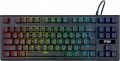 | 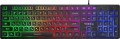 |
|---|---|---|
| Ergo KB-910 | Vinga KB410 | |
| Outdated Product | Outdated Product | |
| User reviews | ||
| TOP sellers | ||
| Connection | wired | wired |
| Cable length | 1.5 m | 1.5 m |
| Type | for game | for game |
| Form factor | 80% (TKL, without Numpad) | 100% (full size) |
| Layout | JIS | ANSI |
Keyboard | ||
| Key profile | high | low |
| Key type | classic type | island type |
| Switch technology | mechanical | membrane |
| Switches | Blue (Clicky) | |
| Fn key |  | |
Features | ||
| Cyrillic colour | white | transparent |
| Volume control | fn | fn |
| Palm rest | + | |
| Game mode | | |
| Lighting | multicolor | multicolor |
Connection and power supply | ||
| Cable | USB-A | USB-A braided |
General | ||
| Size | 353x125x37 mm | 439x126x30 mm |
| Weight | 900 g | 413 g |
| Color | ||
| Added to E-Catalog | december 2019 | march 2019 |


Compare Ergo KB-910 and Vinga KB410
You may be interested in
My comparisons
Ergo KB-910 often compared


Vinga KB410 often compared


Glossary
Form factor
— 100% (full-sized). Classic layout with 104/105 keys featuring a full NumPad, dedicated F1–F12 row, and navigation cluster including Insert/Delete, Home/End, PgUp/PgDn; this version is valued for its familiar geometry, typing speed, and ease of frequent number entry, making it optimal for work in Excel, accounting, IDEs, and editing programs, while in games, the NumPad is often used for binds and macros; compared to TKL/80% without a numeric block, as well as 96% and 1800-compact, the 100% format offers maximum comfort and requires less retraining, but takes up more desk space and pushes the mouse further away, so for compact workplaces, it might be wiser to consider smaller formats.
— 1800 (compact full-sized). A full-featured layout with a numeric block but in a narrower body: the NumPad is shifted closer to the main field, and navigation is often placed above it or compacted next to the arrow keys. It feels like "100%", but is shorter by a few centimeters, so the mouse is closer to the center, offering more comfort for wrists. Compared to TKL, you retain fast number entry, and against 96%, you gain a slightly more "airy" geometry with clear orientation. Note the non-standard sizes of some keys and the right block, which sometimes require special keycap sets. This format is convenient for Excel, accounting, IDEs, and editing, while offering gamers the NumPad for macros while saving desk space.
...r>
— 96% (compact full-sized). Keyboards that preserve all key zones of 100% (F1–F12 row, arrow keys, navigation, and NumPad) but place them in a tight "grid" layout, almost like TKL in width. The numeric block is shifted closer to the main area, while Insert/Home/End and PgUp/PgDn are often reduced to 1u and grouped above the arrows or next to the NumPad. Compared to the 1800 format, 96% is even more compact and visually "smoother," and against TKL, you do not lose the speed of number entry. Note the possible non-standard sizes of the right shift, zeros, and plus on the NumPad, requiring a more selective keycap choice. This format is chosen for Excel and accounting, editing and coding, while gamers use the NumPad for macros, gaining maximum functions with minimal table width.
— 80% (TKL, without Num-block). A full-featured keyboard without a numeric block: retains the F1–F12 row, arrow keys, and navigation Insert/Delete, Home/End, PgUp/PgDn, but is considerably narrower, bringing the mouse closer to the center, which is easier on the shoulders and wrists. Gamers and developers favor this format: there’s more desk space, while familiar keys and hotkeys remain in place. Compared to 100%, you only lose quick number entry, which can be supplemented with a separate wireless NumPad. In comparison to 75%, TKL is more readable and "airy" thanks to its separate navigation block; unlike 96%, it is more compact for mouse grip, though lacking a NumPad. The 80% (TKL) format is optimal for FPS, work in IDEs, editing, and everyday office tasks where numbers aren’t entered continuously.
— 75% (compact TKL, without Num-block). "Almost TKL," where all main keys are within reach, but the body is shorter by several centimeters due to a tight "staircase" arrangement of arrows and navigation. Compared to 80%, it decreases the distance between hands and mouse, enhancing ergonomics for prolonged use, and relative to 100% and 96%, you lose only the numeric block, gaining space for the mouse and a more neutral shoulder posture. This format is chosen for IDEs and design packages, FPS and MOBA, mobile setups with narrow desks, when numbers are entered infrequently or supplemented with an external NumPad. Note: 75% may have non-standard sizes in the right block and individual keys, which is important when selecting keycaps and stabilizers.
— 65% (ultra-compact, without F-row). "Condensed TKL": the alphanumeric block, arrow keys, and a pair of navigation keys remain in place, while the NumPad and the top F1–F12 row are accessed via Fn. This layout is significantly narrower in width, moving the mouse closer to the center, which reduces the spread of arms — ideal for narrow desks, when working on a laptop, and for travel. Compared to 60%, the 65% format is more practical thanks to dedicated arrows and Delete; against 75% and 80%, it is more compact but often requires getting accustomed to layers. Possible non-standard sizes of the right shift and navigation keys are important when choosing keycaps. In real-world scenarios, the 65% format is excellent for IDEs, streaming, and FPS/MOBA games, while regular number entry is complemented by an external wireless NumPad.
— 60% (mini). Classic "trimmed" layout with ~61/62 keys without NumPad, no F1–F12 top row, and no separate navigation cluster: all accessed through the Fn layer, with arrows usually assigned to combinations. Compared to 65%, this format is even more compact but often requires acclimatization to layers; against 75%/80%, you save desk width and achieve a more neutral shoulder posture, at the cost of losing "quick" F-keys. The strong points of 60% are portability, free space for the mouse and mat, and reduced arm movement between keyboard and mouse, making it popular with FPS gamers, streamers, and those working on laptops at narrow desks or traveling. If active number entry or "hot" F-keys are needed, an external wireless NumPad and well-thought-out layer layout help.
— 40% (ultra-mini). Radically compact layout with about 40–50 keys, lacking a number row, arrows, and F-keys: all are accessed via Fn layers, combined presses, and macros, often with an ortholinear matrix. Due to the minimal width, the mouse is closer to the center, reducing hand spread and freeing up desk space, appreciated by mobile users and minimalists. Compared to 60% and 65%, the 40% format requires more serious adaptation and thoughtful firmware (QMK/VIA, home-row mods, tap-dance), and keycap selection is more challenging due to non-standard sizes. The strong point is portability and speed after getting used to it; weakness — reliance on layers and inconvenience of frequent number entry and arrow navigation. The 40% format is practical for travel, work on laptops with docking stations, text editing with hotkeys, and streaming, while numbers are usually supplemented with an external NumPad.
— 1800 (compact full-sized). A full-featured layout with a numeric block but in a narrower body: the NumPad is shifted closer to the main field, and navigation is often placed above it or compacted next to the arrow keys. It feels like "100%", but is shorter by a few centimeters, so the mouse is closer to the center, offering more comfort for wrists. Compared to TKL, you retain fast number entry, and against 96%, you gain a slightly more "airy" geometry with clear orientation. Note the non-standard sizes of some keys and the right block, which sometimes require special keycap sets. This format is convenient for Excel, accounting, IDEs, and editing, while offering gamers the NumPad for macros while saving desk space.
— 80% (TKL, without Num-block). A full-featured keyboard without a numeric block: retains the F1–F12 row, arrow keys, and navigation Insert/Delete, Home/End, PgUp/PgDn, but is considerably narrower, bringing the mouse closer to the center, which is easier on the shoulders and wrists. Gamers and developers favor this format: there’s more desk space, while familiar keys and hotkeys remain in place. Compared to 100%, you only lose quick number entry, which can be supplemented with a separate wireless NumPad. In comparison to 75%, TKL is more readable and "airy" thanks to its separate navigation block; unlike 96%, it is more compact for mouse grip, though lacking a NumPad. The 80% (TKL) format is optimal for FPS, work in IDEs, editing, and everyday office tasks where numbers aren’t entered continuously.
— 75% (compact TKL, without Num-block). "Almost TKL," where all main keys are within reach, but the body is shorter by several centimeters due to a tight "staircase" arrangement of arrows and navigation. Compared to 80%, it decreases the distance between hands and mouse, enhancing ergonomics for prolonged use, and relative to 100% and 96%, you lose only the numeric block, gaining space for the mouse and a more neutral shoulder posture. This format is chosen for IDEs and design packages, FPS and MOBA, mobile setups with narrow desks, when numbers are entered infrequently or supplemented with an external NumPad. Note: 75% may have non-standard sizes in the right block and individual keys, which is important when selecting keycaps and stabilizers.
— 65% (ultra-compact, without F-row). "Condensed TKL": the alphanumeric block, arrow keys, and a pair of navigation keys remain in place, while the NumPad and the top F1–F12 row are accessed via Fn. This layout is significantly narrower in width, moving the mouse closer to the center, which reduces the spread of arms — ideal for narrow desks, when working on a laptop, and for travel. Compared to 60%, the 65% format is more practical thanks to dedicated arrows and Delete; against 75% and 80%, it is more compact but often requires getting accustomed to layers. Possible non-standard sizes of the right shift and navigation keys are important when choosing keycaps. In real-world scenarios, the 65% format is excellent for IDEs, streaming, and FPS/MOBA games, while regular number entry is complemented by an external wireless NumPad.
— 60% (mini). Classic "trimmed" layout with ~61/62 keys without NumPad, no F1–F12 top row, and no separate navigation cluster: all accessed through the Fn layer, with arrows usually assigned to combinations. Compared to 65%, this format is even more compact but often requires acclimatization to layers; against 75%/80%, you save desk width and achieve a more neutral shoulder posture, at the cost of losing "quick" F-keys. The strong points of 60% are portability, free space for the mouse and mat, and reduced arm movement between keyboard and mouse, making it popular with FPS gamers, streamers, and those working on laptops at narrow desks or traveling. If active number entry or "hot" F-keys are needed, an external wireless NumPad and well-thought-out layer layout help.
— 40% (ultra-mini). Radically compact layout with about 40–50 keys, lacking a number row, arrows, and F-keys: all are accessed via Fn layers, combined presses, and macros, often with an ortholinear matrix. Due to the minimal width, the mouse is closer to the center, reducing hand spread and freeing up desk space, appreciated by mobile users and minimalists. Compared to 60% and 65%, the 40% format requires more serious adaptation and thoughtful firmware (QMK/VIA, home-row mods, tap-dance), and keycap selection is more challenging due to non-standard sizes. The strong point is portability and speed after getting used to it; weakness — reliance on layers and inconvenience of frequent number entry and arrow navigation. The 40% format is practical for travel, work on laptops with docking stations, text editing with hotkeys, and streaming, while numbers are usually supplemented with an external NumPad.
Layout
The layout describes the physical geometry of the keys and their standard arrangement: the shape of Enter and Shift, the presence of additional keys, the width of the space bar, and consequently, compatibility with keycap sets and typing familiarity. The standards hardly affect productivity in software and gaming — comfort and how easy it is to find suitable keycaps/cases are more important. The following types are found:
— ANSI (American). A distinctive feature of the American layout is the single-row Enter key; it is the only popular layout where this key occupies one row, not two. Additionally, unlike the European ISO, the Shift keys on ANSI keyboards have the same width, and the Alt key has the same function. The backslash “\” is usually placed above the Enter and can be longer.
— ISO (European). One characteristic feature of the European layout is the Enter key, which occupies two rows and is slightly wider at the top. Also, the modifier keys are asymmetrical: the Shift keys differ in size (the left one is shorter than the right), and the Alts differ in function (the right Alt is marked as “Alt Gr” and is used for typing special characters of European languages). From the similar in many ways "Japanese" JIS layout, the ISO layout differs by the placement of the backslash “\” — it is standardly located near the left Shift (in some models, it is duplicated near the Enter). As a result,...the left Shift is shorter than usual; this can be inconvenient, especially for new users.
— KS (Korean). The “Korean” layout can be distinguished by the characteristic shape of the Enter key: it occupies two rows and is longer at the bottom than at the top. Another feature is the backslash “\”, which is located to the left of the Backspace, resulting in a shorter Backspace than in other layouts.
— JIS (Japanese). A layout much like the European ISO: it has the same two-row Enter with an increased length of the upper half. In many models, the right Alt is labeled “Alt Gr” and is designed for typing special symbols. The main differences lie in two aspects: the length of the left Shift (it is standard in JIS, not shortened) and the placement of the backslash “\” (it is standardly installed to the left of the lower half of the Enter, where some ISO keyboards have a second, additional backslash).
— ANSI (American). A distinctive feature of the American layout is the single-row Enter key; it is the only popular layout where this key occupies one row, not two. Additionally, unlike the European ISO, the Shift keys on ANSI keyboards have the same width, and the Alt key has the same function. The backslash “\” is usually placed above the Enter and can be longer.
— ISO (European). One characteristic feature of the European layout is the Enter key, which occupies two rows and is slightly wider at the top. Also, the modifier keys are asymmetrical: the Shift keys differ in size (the left one is shorter than the right), and the Alts differ in function (the right Alt is marked as “Alt Gr” and is used for typing special characters of European languages). From the similar in many ways "Japanese" JIS layout, the ISO layout differs by the placement of the backslash “\” — it is standardly located near the left Shift (in some models, it is duplicated near the Enter). As a result,...the left Shift is shorter than usual; this can be inconvenient, especially for new users.
— KS (Korean). The “Korean” layout can be distinguished by the characteristic shape of the Enter key: it occupies two rows and is longer at the bottom than at the top. Another feature is the backslash “\”, which is located to the left of the Backspace, resulting in a shorter Backspace than in other layouts.
— JIS (Japanese). A layout much like the European ISO: it has the same two-row Enter with an increased length of the upper half. In many models, the right Alt is labeled “Alt Gr” and is designed for typing special symbols. The main differences lie in two aspects: the length of the left Shift (it is standard in JIS, not shortened) and the placement of the backslash “\” (it is standardly installed to the left of the lower half of the Enter, where some ISO keyboards have a second, additional backslash).
Key profile
The distance that the key travels when pressed — from the initial position to touching the contacts and sending the "command". Indicated as high or low. Keyboards with low key travel(3 mm or less) are considered to be more comfortable for fast input (such as fast typing). However, the best option largely depends on the habits and preferences of a particular user.
Key type
— Classic type. Keyboard with keys of the usual square and rectangular shape, with a small distance between them. Such keys usually expand downwards so that the gaps between them are as small as possible.
— Island type. Also known as "soaring" or chiclet. This is a keyboard in which each key is installed in a separate hole at a small distance from the others. Island models are more convenient than classical ones in that they are less likely to accidentally press the adjacent key. On the other hand, they are more difficult to clean: debris that has clogged into the gap between the key and the “board” itself is quite difficult to clean out, while contamination can create problems in operation.
On the practical side, the choice of a particular type of keys depends primarily on the personal preferences of the user.
— Island type. Also known as "soaring" or chiclet. This is a keyboard in which each key is installed in a separate hole at a small distance from the others. Island models are more convenient than classical ones in that they are less likely to accidentally press the adjacent key. On the other hand, they are more difficult to clean: debris that has clogged into the gap between the key and the “board” itself is quite difficult to clean out, while contamination can create problems in operation.
On the practical side, the choice of a particular type of keys depends primarily on the personal preferences of the user.
Switch technology
— Membrane. The name of this type is due to the fact that the contacts under each key are made in the form of two membranes — conductive disks on a flexible film. The return of the keys to their original position after pressing is ensured by the elasticity of the membranes. This design is characterized by low cost and low noise level; in addition, such keyboards are quite resistant to liquid spills (although this is still not recommended). Of the shortcomings, it is worth noting the relatively low durability — 3-4 times lower than that of mechanical ones. In addition, as the keys of this type wear out, the force required to press decreases, they begin to “fall through” under the fingers (“fatigue effect”).
— Mechanical. In this design, springs are used to return the key to its original position after being pressed. Mechanical keyboards are considered more advanced than membrane keyboards: they are more reliable and durable, almost do not lose properties as they wear out, and give a clear tactile feedback. The overall noise level is often higher than that of membrane ones, however, many attribute a characteristic click with each press to the advantages of such models; in addition, completely silent mechanical switches are also available. But of the unequivocal disadvantages, one can name the high cost and sensitivity to spilling liquid (although a mechanical keyboard can also be made waterproof).
...
— Optical-mechanical. A variation of the mechanical keyboards described above, in which each key is equipped not with a traditional pair of contacts, but with an optical switch in the form of a sensor that receives an infrared beam; when you press the key, this beam is blocked, which serves as a signal for operation. One of the key advantages of such switches is a very high response speed (fractions of a millisecond); this moment is not critical for domestic use, but it can be fundamental for gamers-enthusiasts and e-sportsmen. In addition, the absence of electrical contacts that are prone to wear and oxidize has a positive effect on durability. And although initially the “optics” are more complicated than classic systems with contacts, however, in gaming keyboards, optical-mechanical switches are often even cheaper than pure “mechanics”. And the fact that this option is relatively rare is primarily due to the fact that optical technology appeared not so long ago and is only gaining popularity.
— Membrane + mechanical. A layout in which most of the keys have a membrane design, and some, the most "responsible" ones, are mechanical. About the features of both options, see above, and a similar combination of them is found mainly in gaming keyboards. In this case, the "mechanics" are usually used on the traditional combination of WASD plus on the surrounding keys Q, E, R and F.
— Mechanical-membrane. A hybrid design that combines elements of mechanical and membrane keyboards (see above for more on both). In this case, these features are combined in each individual key. Usually, under each button in such keyboards there is a membrane, however, inside this membrane is not just a pair of contacts, but a mechanical spring system. Thus, this design combines the advantages of both options. At the same time, mechanical-membrane systems are very expensive. Therefore, their main scope is high-end gaming keyboards, and even among such devices this option is quite rare.
— Scissor. A slightly modified version of membrane keyboards (see the relevant paragraph), in which the flexible membrane on each key is supplemented by a two-piece mechanism fastened together in the form of scissors. One of the main features of scissor keyboards is the low key travel (noticeably lower than that of membrane keyboards). Also, this design is less demanding on accuracy, it allows you to achieve a clear pressing regardless of where the finger hit — in the centre or on the edge of the key. The service life of the "scissors" is large; they are more difficult to clean, however, they become dirty much more slowly than "membranes". Among the disadvantages of this option, a slightly increased noise level during operation can be noted — due to the clicking of scissor mechanisms.
— Mechanical. In this design, springs are used to return the key to its original position after being pressed. Mechanical keyboards are considered more advanced than membrane keyboards: they are more reliable and durable, almost do not lose properties as they wear out, and give a clear tactile feedback. The overall noise level is often higher than that of membrane ones, however, many attribute a characteristic click with each press to the advantages of such models; in addition, completely silent mechanical switches are also available. But of the unequivocal disadvantages, one can name the high cost and sensitivity to spilling liquid (although a mechanical keyboard can also be made waterproof).
...
— Optical-mechanical. A variation of the mechanical keyboards described above, in which each key is equipped not with a traditional pair of contacts, but with an optical switch in the form of a sensor that receives an infrared beam; when you press the key, this beam is blocked, which serves as a signal for operation. One of the key advantages of such switches is a very high response speed (fractions of a millisecond); this moment is not critical for domestic use, but it can be fundamental for gamers-enthusiasts and e-sportsmen. In addition, the absence of electrical contacts that are prone to wear and oxidize has a positive effect on durability. And although initially the “optics” are more complicated than classic systems with contacts, however, in gaming keyboards, optical-mechanical switches are often even cheaper than pure “mechanics”. And the fact that this option is relatively rare is primarily due to the fact that optical technology appeared not so long ago and is only gaining popularity.
— Membrane + mechanical. A layout in which most of the keys have a membrane design, and some, the most "responsible" ones, are mechanical. About the features of both options, see above, and a similar combination of them is found mainly in gaming keyboards. In this case, the "mechanics" are usually used on the traditional combination of WASD plus on the surrounding keys Q, E, R and F.
— Mechanical-membrane. A hybrid design that combines elements of mechanical and membrane keyboards (see above for more on both). In this case, these features are combined in each individual key. Usually, under each button in such keyboards there is a membrane, however, inside this membrane is not just a pair of contacts, but a mechanical spring system. Thus, this design combines the advantages of both options. At the same time, mechanical-membrane systems are very expensive. Therefore, their main scope is high-end gaming keyboards, and even among such devices this option is quite rare.
— Scissor. A slightly modified version of membrane keyboards (see the relevant paragraph), in which the flexible membrane on each key is supplemented by a two-piece mechanism fastened together in the form of scissors. One of the main features of scissor keyboards is the low key travel (noticeably lower than that of membrane keyboards). Also, this design is less demanding on accuracy, it allows you to achieve a clear pressing regardless of where the finger hit — in the centre or on the edge of the key. The service life of the "scissors" is large; they are more difficult to clean, however, they become dirty much more slowly than "membranes". Among the disadvantages of this option, a slightly increased noise level during operation can be noted — due to the clicking of scissor mechanisms.
Switches
Cyrillic colour
The colour of the Cyrillic letters printed on the keyboard.
This colour is usually chosen so that the letters are clearly visible. This point does not affect the functionality of the keyboard, and the choice in this case depends mainly on personal preferences. However, there is also a practical point: for inexperienced users who have not mastered touch typing, it is desirable that the letters stand out as much as possible against the background of the keys.
Transparent letters are a separate case — they are used in keyboards equipped with a backlight (see below), due to which such characters, when the backlight is on, are visible even in the dark.
This colour is usually chosen so that the letters are clearly visible. This point does not affect the functionality of the keyboard, and the choice in this case depends mainly on personal preferences. However, there is also a practical point: for inexperienced users who have not mastered touch typing, it is desirable that the letters stand out as much as possible against the background of the keys.
Transparent letters are a separate case — they are used in keyboards equipped with a backlight (see below), due to which such characters, when the backlight is on, are visible even in the dark.
Palm rest
The presence of an additional palm rest in the design of the keyboard. Such a stand is located in the lower (closest to the user) part of the device and is a kind of continuation of the “board”, providing additional support and increasing the comfort of use. However, comfort is largely a matter of personal preference, and not all users like stands; therefore, most often they are made removable.
Cable
Features of the cable with which the device is equipped. First of all, it's worth noting the connection interface used in a wired keyboard. Namely:
— USB-A. A standard universal port for connecting peripherals, present in almost all modern computers—from desktop PCs to microcomputers. USB keyboards are the most universal, so this option is the most common today. The main disadvantage of this option is that the USB port occupied by the keyboard might be needed for another peripheral device; however, this problem is easily solved—for example, by using a USB hub or purchasing a keyboard with its own hub (see below).
— USB-C. The USB-C plug is reversible, compact, and universal, so the keyboard easily connects to modern laptops, PCs, and docking stations. There is no difference in delay and functionality compared to USB-A: in both cases, the keyboard is recognized as a common USB-HID, NKRO, and high polling rate do not depend on the type of plug. Mechanically, USB-C is usually more durable for wear (up to ~10,000 insertion cycles compared to ~1,500 for USB-A), and it is also easier to insert "by feel". Compatibility is resolved with a cable or mini-adapter A↔C, which may be included. Bottom line: if you have a free USB-C port—opt for a keyboard/cable with USB-C; if there are few "C" ports or the PC is stationary—USB-A is just as good in operation.
— PS/2. A specialized round-shaped port used for connecting keyboards and mice; modern PCs may have either two ports, one for each, or a single universal port. In any case, this connection method is convenient because all USB ports remain free; this can be important when using a large number of USB peripherals. At the same time, the PS/2 port itself is quite large and not suitable for laptops and other compact equipment, and therefore is found only in desktop PCs. Even in these cases, it is advisable to confirm the availability of PS/2 before purchasing a keyboard with such a plug.
— USB or PS/2. Generally, this means USB keyboards equipped with an adapter for PS/2 ports. The features of both interfaces are described above; here we note that this option is the most versatile, allowing for a choice of connection method depending on the situation. Furthermore, it is convenient because there are relatively few PS/2 models, and it's easier to find a suitable USB keyboard equipped with an adapter. The adapters themselves are inexpensive and do not significantly affect the device's price; naturally, they are also sold separately, although a set is often a more preferable option.
— Brand-specific. Connection using a unique plug that is not among the standard (described above) interfaces and is mainly used in technology from a specific brand, at best in some devices from third-party manufacturers. This option is quite convenient for tablet accessories (see "By Direction").
In addition to connection, the keyboard cable may have additional properties:
— Detachable.... A cable that can be disconnected from the keyboard. Almost all devices with two connection options—wired and wireless—have this feature: in wireless mode, the cable can be removed so that it doesn't get in the way. Although, there are also purely wired devices with such a cable—mainly laptop ones, where the cable is removed for convenience during transport. It is also worth noting that a universal port is most often used to connect the cable, so if necessary, the cable can be replaced with another—e.g., a longer one.
— Braided. The presence of an additional braid on the cable makes it more durable, reliable, and resistant to bends. On the other hand, the braid tends to accumulate dirt and fray with wear; because of this, the cable's casing quickly loses its marketable appearance compared to keyboards without braiding. And such a cord costs more than a regular smooth one.
— USB-A. A standard universal port for connecting peripherals, present in almost all modern computers—from desktop PCs to microcomputers. USB keyboards are the most universal, so this option is the most common today. The main disadvantage of this option is that the USB port occupied by the keyboard might be needed for another peripheral device; however, this problem is easily solved—for example, by using a USB hub or purchasing a keyboard with its own hub (see below).
— USB-C. The USB-C plug is reversible, compact, and universal, so the keyboard easily connects to modern laptops, PCs, and docking stations. There is no difference in delay and functionality compared to USB-A: in both cases, the keyboard is recognized as a common USB-HID, NKRO, and high polling rate do not depend on the type of plug. Mechanically, USB-C is usually more durable for wear (up to ~10,000 insertion cycles compared to ~1,500 for USB-A), and it is also easier to insert "by feel". Compatibility is resolved with a cable or mini-adapter A↔C, which may be included. Bottom line: if you have a free USB-C port—opt for a keyboard/cable with USB-C; if there are few "C" ports or the PC is stationary—USB-A is just as good in operation.
— PS/2. A specialized round-shaped port used for connecting keyboards and mice; modern PCs may have either two ports, one for each, or a single universal port. In any case, this connection method is convenient because all USB ports remain free; this can be important when using a large number of USB peripherals. At the same time, the PS/2 port itself is quite large and not suitable for laptops and other compact equipment, and therefore is found only in desktop PCs. Even in these cases, it is advisable to confirm the availability of PS/2 before purchasing a keyboard with such a plug.
— USB or PS/2. Generally, this means USB keyboards equipped with an adapter for PS/2 ports. The features of both interfaces are described above; here we note that this option is the most versatile, allowing for a choice of connection method depending on the situation. Furthermore, it is convenient because there are relatively few PS/2 models, and it's easier to find a suitable USB keyboard equipped with an adapter. The adapters themselves are inexpensive and do not significantly affect the device's price; naturally, they are also sold separately, although a set is often a more preferable option.
— Brand-specific. Connection using a unique plug that is not among the standard (described above) interfaces and is mainly used in technology from a specific brand, at best in some devices from third-party manufacturers. This option is quite convenient for tablet accessories (see "By Direction").
In addition to connection, the keyboard cable may have additional properties:
— Detachable.... A cable that can be disconnected from the keyboard. Almost all devices with two connection options—wired and wireless—have this feature: in wireless mode, the cable can be removed so that it doesn't get in the way. Although, there are also purely wired devices with such a cable—mainly laptop ones, where the cable is removed for convenience during transport. It is also worth noting that a universal port is most often used to connect the cable, so if necessary, the cable can be replaced with another—e.g., a longer one.
— Braided. The presence of an additional braid on the cable makes it more durable, reliable, and resistant to bends. On the other hand, the braid tends to accumulate dirt and fray with wear; because of this, the cable's casing quickly loses its marketable appearance compared to keyboards without braiding. And such a cord costs more than a regular smooth one.