
Comparison TP-LINK UH400 vs STLab U-310
Add to comparison | 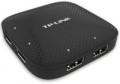 | 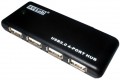 |
|---|---|---|
| TP-LINK UH400 | STLab U-310 | |
| Compare prices 14 | from $5.00 | |
| TOP sellers | ||
USB 3.0 interfaces. Simultaneous connection of up to 4 devices. Activity indicator for each of the ports. Compact form factor. Short cord. | ||
| Product type | USB hub | USB hub |
| Placement | external | external |
| PC connectivity | USB-A 5Gbps | USB-A 2.0 |
HUB connectors | ||
| USB-A | 4 pcs 5Gbps | 4 pcs 2.0 |
More features | ||
| External power supply |  |  |
| USB cable compartment | | |
| Cable length | 5 cm | |
| Activity indicator | | |
| Body material | plastic | |
| Size | 71x71x16.6 mm | |
| Color | ||
| Added to E-Catalog | june 2016 | march 2013 |





Compare TP-LINK UH400 and STLab U-310
Price comparison
You may be interested in
TP-LINK UH400 often compared

Glossary
PC connectivity
— USB-A. The classic, widely accepted USB port, which has recently been losing ground to the more advanced USB-C port.
— USB-C. Unlike the classic, full-sized USB, this connector is much smaller and features a reversible design, allowing the plug to be inserted in either direction. This interface is rarely found in desktop PCs but is becoming increasingly popular in laptops, tablets, and phones. Note that the Type C standard describes only the connector design; the version (interface) of USB is described in the section below.
The main difference between interface versions is the bandwidth — speed.
— 2.0. The outdated 2.0 version provides data transfer speeds up to 480 Mbps. Found only in USB-A ports.
— 5Gbps. Previously named USB 3.2 gen1 and USB 3.0 (they sure know how to confuse). Unlike 2.0, this version offers a 10 times higher maximum speed (4.8 Gbps) and higher power output, allowing power-hungry devices and extensive hubs to be connected.
— 10Gbps. Further enhancement of the 5Gbps standard (and typically, the previously renamed USB 3.2 gen2 and just USB 3.1), achieving a maximum speed of 10 Gbps and even higher power output for external devices.
— 20Gbps. As the name suggests, the interface supports spee...ds up to 20 Gbps.
— USB4 40Gbps / Thunderbolt 4. Connecting a USB4 or Thunderbolt 4 hub to a PC allows data to be transmitted at speeds up to 40 Gbps through a single cable, connect multiple monitors (e.g., two 4K or one 8K display), use high-speed drives with PCIe, supply power to devices up to 100 W, and connect peripherals like network cards, audio interfaces, and chargers, turning one USB-C port into a universal dock with many functions.
— Lightning. Apple's proprietary interface used in its compact devices (iPhone, iPad, and iPod touch) since 2012. In terms of application, it is fully analogous to the microUSB described above, with the adjustment that it is only found in Apple gadgets and not used by other manufacturers.
— Internal USB. A variety of the USB standard used for connecting internal card readers (see "Type", "Purpose"). It differs from external USB in its connector; a card reader with such a connection can only be connected to connectors on the motherboard and is not compatible with external USB ports. All other characteristics are fully analogous to the corresponding standard of external USB (see above).
— microUSB. A reduced version of the external USB interface (see above): the size of such a connector is much smaller than the full-sized one, allowing it to be used in portable equipment, particularly smartphones and tablets. In fact, card readers and hubs using this interface for connection are usually intended for such equipment. Note that proper operation is only possible if the primary device can operate in USB host mode (this feature is called USB On-the-Go).
— USB-C. Unlike the classic, full-sized USB, this connector is much smaller and features a reversible design, allowing the plug to be inserted in either direction. This interface is rarely found in desktop PCs but is becoming increasingly popular in laptops, tablets, and phones. Note that the Type C standard describes only the connector design; the version (interface) of USB is described in the section below.
The main difference between interface versions is the bandwidth — speed.
— 2.0. The outdated 2.0 version provides data transfer speeds up to 480 Mbps. Found only in USB-A ports.
— 5Gbps. Previously named USB 3.2 gen1 and USB 3.0 (they sure know how to confuse). Unlike 2.0, this version offers a 10 times higher maximum speed (4.8 Gbps) and higher power output, allowing power-hungry devices and extensive hubs to be connected.
— 10Gbps. Further enhancement of the 5Gbps standard (and typically, the previously renamed USB 3.2 gen2 and just USB 3.1), achieving a maximum speed of 10 Gbps and even higher power output for external devices.
— 20Gbps. As the name suggests, the interface supports spee...ds up to 20 Gbps.
— USB4 40Gbps / Thunderbolt 4. Connecting a USB4 or Thunderbolt 4 hub to a PC allows data to be transmitted at speeds up to 40 Gbps through a single cable, connect multiple monitors (e.g., two 4K or one 8K display), use high-speed drives with PCIe, supply power to devices up to 100 W, and connect peripherals like network cards, audio interfaces, and chargers, turning one USB-C port into a universal dock with many functions.
— Lightning. Apple's proprietary interface used in its compact devices (iPhone, iPad, and iPod touch) since 2012. In terms of application, it is fully analogous to the microUSB described above, with the adjustment that it is only found in Apple gadgets and not used by other manufacturers.
— Internal USB. A variety of the USB standard used for connecting internal card readers (see "Type", "Purpose"). It differs from external USB in its connector; a card reader with such a connection can only be connected to connectors on the motherboard and is not compatible with external USB ports. All other characteristics are fully analogous to the corresponding standard of external USB (see above).
— microUSB. A reduced version of the external USB interface (see above): the size of such a connector is much smaller than the full-sized one, allowing it to be used in portable equipment, particularly smartphones and tablets. In fact, card readers and hubs using this interface for connection are usually intended for such equipment. Note that proper operation is only possible if the primary device can operate in USB host mode (this feature is called USB On-the-Go).
USB-A
The number of USB ports located on the body of the card reader or hub (see "Type"). This parameter determines the number of USB ports you will have at your disposal after connecting the device. "Pure" card readers and combined models generally have 1, 2, and even 3 USB ports, while hubs typically feature 4 or more ports.
And the USB connection interface affects the speed. It is worth noting that the speed of the input port does not necessarily indicate overall throughput, as simultaneous connection of USB drives, phones, and memory cards can slow down data transmission, which is in any case limited by the connection interface of the device itself to the PC or laptop (refer to "Connection Interface").
— USB-A 2.0. The outdated version 2.0 provides a data transfer speed of up to 480 Mbps.
— USB-A 5Gbps. Previously known as the standards USB 3.2 gen1 and USB 3.0 (they sure know how to confuse). This version provides a maximum speed 10 times greater (4.8 Gbps) and higher power supply, allowing for energy-demanding devices and extensive splitters to be connected.
— USB-A 10Gbps. Further enhancement of the USB-A 5Gbps standard (and as expected, with multiple previous names like USB 3.2 gen2 and simply USB 3.1), achieving a maximum speed of 10 Gbps and...an even higher power supply for external devices.
And the USB connection interface affects the speed. It is worth noting that the speed of the input port does not necessarily indicate overall throughput, as simultaneous connection of USB drives, phones, and memory cards can slow down data transmission, which is in any case limited by the connection interface of the device itself to the PC or laptop (refer to "Connection Interface").
— USB-A 2.0. The outdated version 2.0 provides a data transfer speed of up to 480 Mbps.
— USB-A 5Gbps. Previously known as the standards USB 3.2 gen1 and USB 3.0 (they sure know how to confuse). This version provides a maximum speed 10 times greater (4.8 Gbps) and higher power supply, allowing for energy-demanding devices and extensive splitters to be connected.
— USB-A 10Gbps. Further enhancement of the USB-A 5Gbps standard (and as expected, with multiple previous names like USB 3.2 gen2 and simply USB 3.1), achieving a maximum speed of 10 Gbps and...an even higher power supply for external devices.
External power supply
External USB devices require power to work, which is supplied to them through the same USB port. However, the power of such power supply is relatively low (especially in version 2.0 ports, see "Connection"), and if several external devices are connected to one port of the computer through a hub, a situation may arise when the power is not enough for their operation. Connecting an external power supply to the hub allows you to avoid such situations: the hub receives additional power from the network and supplies power of the appropriate power to each of its inputs.
Another option for using devices with this function is charging portable equipment via USB: some models can work as stand-alone chargers that do not require connection to a computer.
Another option for using devices with this function is charging portable equipment via USB: some models can work as stand-alone chargers that do not require connection to a computer.
Cable length
The length of the cable supplied with the device. Mostly relevant for models with a non-removable cable that cannot be replaced.
Activity indicator
Light indicator, indicating that data is currently being exchanged between the memory card and the computer to which the card reader is connected. This allows you to avoid disconnecting the card reader during operation, which is fraught not only with data loss, but even damage to the device.
Body material
The main material used for the body of the device.
— Plastic. Plastic is light, cheap, quite practical, incl. has good strength properties. In addition, it allows you to create cases of complex shape and almost any color.
— Metal. As a rule, aluminium-based alloys are used for metal cases. Such cases are much stronger than plastic ones, and also have a stylish appearance. On the other hand, in terms of impact protection, this material has no advantages over plastic, but it costs more, and it can weigh much more.
— Plastic. Plastic is light, cheap, quite practical, incl. has good strength properties. In addition, it allows you to create cases of complex shape and almost any color.
— Metal. As a rule, aluminium-based alloys are used for metal cases. Such cases are much stronger than plastic ones, and also have a stylish appearance. On the other hand, in terms of impact protection, this material has no advantages over plastic, but it costs more, and it can weigh much more.