
Comparison Cougar Vantar vs Cougar 300K
Add to comparison | 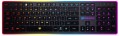 | 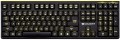 |
|---|---|---|
| Cougar Vantar | Cougar 300K | |
| Compare prices 1 | Outdated Product | |
| User reviews | ||
| TOP sellers | ||
Antighosting (simultaneous pressing of 19 specific keys) | ||
| Connection | wired | wired |
| Cable length | 1.6 m | |
| Type | for game | for game |
| Form factor | 100% (full size) | 100% (full size) |
| Layout | ANSI | KS |
Keyboard | ||
| Key profile | low | high |
| Key type | classic type | classic type |
| Switch technology | scissor | scissor |
| Additional keys | 4 | |
| Programmable keys | 12 | |
| Anti-Ghosting |  |  |
| #KRO | 19-KRO | |
| Fn key | | |
Features | ||
| Cyrillic colour | white | |
| Volume control | fn | add. keys |
| Game mode | | |
| Lighting | multicolor | yellow |
Connection and power supply | ||
| Cable | USB-A | USB-A |
General | ||
| Size | 445x132x20 mm | |
| Weight | 800 g | |
| Color | ||
| Added to E-Catalog | february 2017 | may 2016 |



Compare Cougar Vantar and 300K
Price comparison
You may be interested in
My comparisons
Cougar Vantar often compared


Glossary
Cable length
The length of the cable that the keyboard is equipped with for wired connection (see "Connection type").
When choosing this parameter, you should first of all take into account the distance from the device to the connection port: a cable that is too short may simply not reach the connector, and a cable that is too long may get confused at hand and create inconvenience. As for specific values, the reference length is 1.8 m. However, there are cables both shorter and longer.
When choosing this parameter, you should first of all take into account the distance from the device to the connection port: a cable that is too short may simply not reach the connector, and a cable that is too long may get confused at hand and create inconvenience. As for specific values, the reference length is 1.8 m. However, there are cables both shorter and longer.
Layout
The layout describes the physical geometry of the keys and their standard arrangement: the shape of Enter and Shift, the presence of additional keys, the width of the space bar, and consequently, compatibility with keycap sets and typing familiarity. The standards hardly affect productivity in software and gaming — comfort and how easy it is to find suitable keycaps/cases are more important. The following types are found:
— ANSI (American). A distinctive feature of the American layout is the single-row Enter key; it is the only popular layout where this key occupies one row, not two. Additionally, unlike the European ISO, the Shift keys on ANSI keyboards have the same width, and the Alt key has the same function. The backslash “\” is usually placed above the Enter and can be longer.
— ISO (European). One characteristic feature of the European layout is the Enter key, which occupies two rows and is slightly wider at the top. Also, the modifier keys are asymmetrical: the Shift keys differ in size (the left one is shorter than the right), and the Alts differ in function (the right Alt is marked as “Alt Gr” and is used for typing special characters of European languages). From the similar in many ways "Japanese" JIS layout, the ISO layout differs by the placement of the backslash “\” — it is standardly located near the left Shift (in some models, it is duplicated near the Enter). As a result,...the left Shift is shorter than usual; this can be inconvenient, especially for new users.
— KS (Korean). The “Korean” layout can be distinguished by the characteristic shape of the Enter key: it occupies two rows and is longer at the bottom than at the top. Another feature is the backslash “\”, which is located to the left of the Backspace, resulting in a shorter Backspace than in other layouts.
— JIS (Japanese). A layout much like the European ISO: it has the same two-row Enter with an increased length of the upper half. In many models, the right Alt is labeled “Alt Gr” and is designed for typing special symbols. The main differences lie in two aspects: the length of the left Shift (it is standard in JIS, not shortened) and the placement of the backslash “\” (it is standardly installed to the left of the lower half of the Enter, where some ISO keyboards have a second, additional backslash).
— ANSI (American). A distinctive feature of the American layout is the single-row Enter key; it is the only popular layout where this key occupies one row, not two. Additionally, unlike the European ISO, the Shift keys on ANSI keyboards have the same width, and the Alt key has the same function. The backslash “\” is usually placed above the Enter and can be longer.
— ISO (European). One characteristic feature of the European layout is the Enter key, which occupies two rows and is slightly wider at the top. Also, the modifier keys are asymmetrical: the Shift keys differ in size (the left one is shorter than the right), and the Alts differ in function (the right Alt is marked as “Alt Gr” and is used for typing special characters of European languages). From the similar in many ways "Japanese" JIS layout, the ISO layout differs by the placement of the backslash “\” — it is standardly located near the left Shift (in some models, it is duplicated near the Enter). As a result,...the left Shift is shorter than usual; this can be inconvenient, especially for new users.
— KS (Korean). The “Korean” layout can be distinguished by the characteristic shape of the Enter key: it occupies two rows and is longer at the bottom than at the top. Another feature is the backslash “\”, which is located to the left of the Backspace, resulting in a shorter Backspace than in other layouts.
— JIS (Japanese). A layout much like the European ISO: it has the same two-row Enter with an increased length of the upper half. In many models, the right Alt is labeled “Alt Gr” and is designed for typing special symbols. The main differences lie in two aspects: the length of the left Shift (it is standard in JIS, not shortened) and the placement of the backslash “\” (it is standardly installed to the left of the lower half of the Enter, where some ISO keyboards have a second, additional backslash).
Key profile
The distance that the key travels when pressed — from the initial position to touching the contacts and sending the "command". Indicated as high or low. Keyboards with low key travel(3 mm or less) are considered to be more comfortable for fast input (such as fast typing). However, the best option largely depends on the habits and preferences of a particular user.
Additional keys
The number of additional keys provided in the design of the keyboard.
Such keys do not belong to the standard layout and are intended for quick access to specific functions or individual applications — for example, to control the media player or open mail with one click. This function is convenient because commands from additional keys are usually recognized by the system regardless of what is on the screen — thanks to this, for example, you do not have to close the text editor to switch tracks in the player.
Note that in this case we are talking about individual keys that have a strictly defined purpose and corresponding markings. Programmable buttons, the Fn key (see below) and the functions of the main keys implemented through Fn are not taken into account in this paragraph.
Such keys do not belong to the standard layout and are intended for quick access to specific functions or individual applications — for example, to control the media player or open mail with one click. This function is convenient because commands from additional keys are usually recognized by the system regardless of what is on the screen — thanks to this, for example, you do not have to close the text editor to switch tracks in the player.
Note that in this case we are talking about individual keys that have a strictly defined purpose and corresponding markings. Programmable buttons, the Fn key (see below) and the functions of the main keys implemented through Fn are not taken into account in this paragraph.
Programmable keys
The number of programmable keys provided in the design of the keyboard. Like the additional ones described above, such keys are located outside the standard layout. At the same time, they do not have a rigidly defined purpose — each individual function can be set by the user himself, hence the name. Some manufacturers, however, can initially programme these keys, but this programme can still be changed if desired.
The advantage of such equipment is obvious: additional features of the keyboard can be easily customized. Gamers especially appreciate this feature, so programmable keys are often found in gaming models. On the other hand, the keys themselves usually have neutral markings (for example, P1, P2 ...), and the user has to remember which function is “linked” to where; this can cause confusion.
The advantage of such equipment is obvious: additional features of the keyboard can be easily customized. Gamers especially appreciate this feature, so programmable keys are often found in gaming models. On the other hand, the keys themselves usually have neutral markings (for example, P1, P2 ...), and the user has to remember which function is “linked” to where; this can cause confusion.
Anti-Ghosting
Technology aimed at neutralizing phantom button presses in keyboards with gaming ambitions. The function allows you to simultaneously press numerous keys without false positives of adjacent buttons — a similar situation often occurs in membrane keyboards due to their design features.
#KRO
A parameter that determines the maximum number of simultaneously pressed keys, the signal from which the keyboard is able to process and transmit to the computer. Instead of the "lattice" symbol in the abbreviation KRO, a number is indicated showing the allowable number of simultaneously pressed buttons. Most membrane keyboards come in the 2KRO and 3KRO grades, mechanical models usually start at 6KRO. The NKRO marking says that it is possible to issue a signal from an unlimited number of keys in one sitting.
Cyrillic colour
The colour of the Cyrillic letters printed on the keyboard.
This colour is usually chosen so that the letters are clearly visible. This point does not affect the functionality of the keyboard, and the choice in this case depends mainly on personal preferences. However, there is also a practical point: for inexperienced users who have not mastered touch typing, it is desirable that the letters stand out as much as possible against the background of the keys.
Transparent letters are a separate case — they are used in keyboards equipped with a backlight (see below), due to which such characters, when the backlight is on, are visible even in the dark.
This colour is usually chosen so that the letters are clearly visible. This point does not affect the functionality of the keyboard, and the choice in this case depends mainly on personal preferences. However, there is also a practical point: for inexperienced users who have not mastered touch typing, it is desirable that the letters stand out as much as possible against the background of the keys.
Transparent letters are a separate case — they are used in keyboards equipped with a backlight (see below), due to which such characters, when the backlight is on, are visible even in the dark.
Volume control
Volume control methodprovided in the keyboard (if such a possibility is provided at all).
— Through Fn. Adjustment using the Fn key (see above): increasing and decreasing the volume is carried out by simultaneously pressing Fn and one of the main keys of the keyboard (usually from the F1 — F12 row), The main advantage of this control is that it allows you not to overload the keyboard with additional controls — this, in turn, has a positive effect on the dimensions and cost. The disadvantage is the need to simultaneously press two keys, which is not always convenient.
— Additional keys. Control with additional keys specially designed for working with volume. A very convenient and practical option: additional keys are usually clearly labeled, while they take up less space and are cheaper than a wheel or a touch slider (see below).
— Wheel. Control by means of a mechanical wheel, the rotation of which up and down or left and right provides a change in volume. A fairly user-friendly option — visual, intuitive and accessible even blindly. At the same time, the wheel can take up quite a lot of space, and it significantly affects the cost of the keyboard.
— Touch slider. Management using a touch surface, the movement of a finger in one direction or another. The sensor takes up minimal space, looks neat...and generally fits well with the overall design of the keyboard, but it is not cheap. Therefore, this option is extremely rare, mainly in high-end gaming or multimedia keyboards.
— Through Fn. Adjustment using the Fn key (see above): increasing and decreasing the volume is carried out by simultaneously pressing Fn and one of the main keys of the keyboard (usually from the F1 — F12 row), The main advantage of this control is that it allows you not to overload the keyboard with additional controls — this, in turn, has a positive effect on the dimensions and cost. The disadvantage is the need to simultaneously press two keys, which is not always convenient.
— Additional keys. Control with additional keys specially designed for working with volume. A very convenient and practical option: additional keys are usually clearly labeled, while they take up less space and are cheaper than a wheel or a touch slider (see below).
— Wheel. Control by means of a mechanical wheel, the rotation of which up and down or left and right provides a change in volume. A fairly user-friendly option — visual, intuitive and accessible even blindly. At the same time, the wheel can take up quite a lot of space, and it significantly affects the cost of the keyboard.
— Touch slider. Management using a touch surface, the movement of a finger in one direction or another. The sensor takes up minimal space, looks neat...and generally fits well with the overall design of the keyboard, but it is not cheap. Therefore, this option is extremely rare, mainly in high-end gaming or multimedia keyboards.