
Comparison Samsung S24F350F 24 " vs Samsung C24F390F 24 "
Add to comparison | 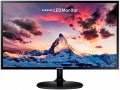 | 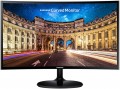 |
|---|---|---|
| Samsung S24F350F 24 " | Samsung C24F390F 24 " | |
from $138.00 up to $179.32 | Compare prices 2 | |
| User reviews | ||
| TOP sellers | ||
Curved screen. Quality colour rendering. High level of contrast. Support for AMD Free Sync technology. Thin frames. Glossy plastic on the front. External power supply. | ||
| Product type | monitor | monitor |
| Size | 24 " | 24 " |
Screen | ||
| Curved screen | 1800R | |
| Panel type | IPS | *VA |
| Surface treatment | matte | matte |
| Resolution | 1920x1080 (16:9) | 1920x1080 (16:9) |
| FPS | 60 Hz | 60 Hz |
| Pixel size | 0.27 mm | 0.27 mm |
| Response time (GtG) | 4 ms | 4 ms |
| Vertical viewing angle | 178 ° | 178 ° |
| Horizontal viewing angle | 178 ° | 178 ° |
| Brightness | 250 cd/m² | 250 cd/m² |
| Static contrast | 1 000:1 | 3 000:1 |
| Colour depth | 6-bit + FRC (16.7M Colors) | 8-bit (16.7M Colors) |
| Colour space (NTSC) | 72 % | 72 % |
Connection | ||
| Video transmission | VGA HDMI | VGA HDMI |
| Connectors (optional) | mini-Jack output (3.5 mm) | |
Features | ||
| Features | Flicker-Free AMD FreeSync | Flicker-Free AMD FreeSync |
General | ||
| Wall mount | VESA 75x75mm | VESA 75x75mm |
| Power consumption | 25 W | 25 W |
| Dimensions (WxHxD) | 547.7x418x206.5 mm | 547.8x418.2x206.5 mm |
| Weight | 3.3 kg | 3.3 kg |
| Color | ||
| Added to E-Catalog | may 2016 | march 2016 |



Compare Samsung S24F350F and C24F390F
Price comparison
You may be interested in
My comparisons
Samsung S24F350F often compared


Samsung C24F390F often compared


Glossary
Curved screen
The presence of a curved screen in the monitor design.
Such a screen has the left and right edges curved forward - it is believed that this shape significantly improves perception compared to a flat surface. At the same time, it makes sense to provide this feature only on fairly large diagonals - at least 30"; therefore, it is typical mainly for high-end models. It is also worth noting that in order to take advantage of all the advantages of a curved screen, you need to look at it from a certain point - at the optimal distance, strictly in the center; however, for computer monitors this is usually not a problem.
The main parameter of a curved screen is the radius of curvature. It is indicated in millimeters along the radius of a circle, the bend of which corresponds to the bend of the monitor: for example, the designation 1800R indicates a radius of 1.8 m.
The smaller the number in this designation, the more curved the screen (all other things being equal). At the same time, some manufacturers claim that the ideal curvature value is 1000R: supposedly, it is with this curvature of the screen that the image on it turns out to be as close as possible to a person’s natural field of vision, and the closer the curvature of the monitor is to 1000R, the better the viewing experience. However, in practice a lot depends on personal preference; and when viewed from a long distance (exceeding the radius of curvature by one a...nd a half times or more), all the advantages of a curved screen are lost.
Such a screen has the left and right edges curved forward - it is believed that this shape significantly improves perception compared to a flat surface. At the same time, it makes sense to provide this feature only on fairly large diagonals - at least 30"; therefore, it is typical mainly for high-end models. It is also worth noting that in order to take advantage of all the advantages of a curved screen, you need to look at it from a certain point - at the optimal distance, strictly in the center; however, for computer monitors this is usually not a problem.
The main parameter of a curved screen is the radius of curvature. It is indicated in millimeters along the radius of a circle, the bend of which corresponds to the bend of the monitor: for example, the designation 1800R indicates a radius of 1.8 m.
The smaller the number in this designation, the more curved the screen (all other things being equal). At the same time, some manufacturers claim that the ideal curvature value is 1000R: supposedly, it is with this curvature of the screen that the image on it turns out to be as close as possible to a person’s natural field of vision, and the closer the curvature of the monitor is to 1000R, the better the viewing experience. However, in practice a lot depends on personal preference; and when viewed from a long distance (exceeding the radius of curvature by one a...nd a half times or more), all the advantages of a curved screen are lost.
Panel type
The panel type determines the technology used to build a monitor’s screen and how it renders color, contrast, viewing angles, black levels, and response time. This parameter has a noticeable impact on how the monitor is used.
— TN+film. A TN+film panel is designed for fast pixel response and is found in inexpensive or older gaming monitors. It is chosen when minimal latency is important, for example in fast-paced online games, but it falls behind IPS, VA, and OLED in color reproduction and viewing angles.
— *VA. A VA panel is characterized by high static contrast, so dark scenes look deeper than on most IPS monitors. This is a good choice for movies, gaming, evening work, and multimedia, especially if rich black levels are important without switching to OLED. The main drawback of VA is possible smearing of dark objects in motion, so for shooters and fast-paced games, it is better to consider not only the stated milliseconds but also real-world reviews of the specific model.
— IPS. An IPS panel maintains color and brightness well when viewed from different angles, making it suitable for workspaces, study, gaming, and amateur image editing. It is one of the most balanced options when you need an everyday monitor without a clear bias toward movies or esports. In terms of black depth, IPS usually loses to VA and OLED, so in a dark room, black may look...more like dark gray.
— OLED .An OLED panel consists of self-emissive pixels that can switch off completely to display black. As a result, the monitor delivers maximum contrast, very fast response, and expressive HDR, which is especially noticeable in games, movies, and dark scenes. The limitation of OLED is the risk of burn-in from static elements such as taskbars, logos, and software interfaces, so these models require more careful use for continuous office work.
In addition, the main panel types can be enhanced, namely by being equipped with miniature LEDs or an additional quantum-dot layer.
— Mini LED. An enhanced backlighting system for LCD monitors in which a large number of small LEDs are used instead of conventional LEDs. This backlighting allows individual areas of the screen to be dimmed more precisely, so HDR scenes look more contrast-rich and blacks appear deeper than on ordinary IPS or VA monitors with basic backlighting. For example, Mini LED is especially useful for gaming, movies, and HDR content, but quality depends heavily on the number of dimming zones and the settings of the specific model.
— Quantum dots (QD). Quantum-dot technology adds a special color layer to the screen, making red, green, and other saturated shades purer. It can be found in different types of monitors: QD-IPS, QD-VA, QD-OLED. In practice, this is useful for HDR, gaming, movies, and image editing where a wide color gamut is important, but the QD label itself does not guarantee accurate factory calibration.
— TN+film. A TN+film panel is designed for fast pixel response and is found in inexpensive or older gaming monitors. It is chosen when minimal latency is important, for example in fast-paced online games, but it falls behind IPS, VA, and OLED in color reproduction and viewing angles.
— *VA. A VA panel is characterized by high static contrast, so dark scenes look deeper than on most IPS monitors. This is a good choice for movies, gaming, evening work, and multimedia, especially if rich black levels are important without switching to OLED. The main drawback of VA is possible smearing of dark objects in motion, so for shooters and fast-paced games, it is better to consider not only the stated milliseconds but also real-world reviews of the specific model.
— IPS. An IPS panel maintains color and brightness well when viewed from different angles, making it suitable for workspaces, study, gaming, and amateur image editing. It is one of the most balanced options when you need an everyday monitor without a clear bias toward movies or esports. In terms of black depth, IPS usually loses to VA and OLED, so in a dark room, black may look...more like dark gray.
— OLED .An OLED panel consists of self-emissive pixels that can switch off completely to display black. As a result, the monitor delivers maximum contrast, very fast response, and expressive HDR, which is especially noticeable in games, movies, and dark scenes. The limitation of OLED is the risk of burn-in from static elements such as taskbars, logos, and software interfaces, so these models require more careful use for continuous office work.
In addition, the main panel types can be enhanced, namely by being equipped with miniature LEDs or an additional quantum-dot layer.
— Mini LED. An enhanced backlighting system for LCD monitors in which a large number of small LEDs are used instead of conventional LEDs. This backlighting allows individual areas of the screen to be dimmed more precisely, so HDR scenes look more contrast-rich and blacks appear deeper than on ordinary IPS or VA monitors with basic backlighting. For example, Mini LED is especially useful for gaming, movies, and HDR content, but quality depends heavily on the number of dimming zones and the settings of the specific model.
— Quantum dots (QD). Quantum-dot technology adds a special color layer to the screen, making red, green, and other saturated shades purer. It can be found in different types of monitors: QD-IPS, QD-VA, QD-OLED. In practice, this is useful for HDR, gaming, movies, and image editing where a wide color gamut is important, but the QD label itself does not guarantee accurate factory calibration.
Static contrast
Static contrast provided by the monitor screen.
This value describes the difference between the brightest whites and darkest blacks that the screen is capable of producing. In this case, unlike dynamic contrast (see below), the difference is indicated on the condition that the brightness of the screen backlight remains unchanged. In other words, this is the contrast that is guaranteed to be achievable within one frame. Static contrast is inevitably lower than dynamic. However, it is she who describes the basic capabilities of the screen.
The minimum static contrast ratio for tolerable image quality is considered to be 250:1, but even the most modest modern monitors give out about 400:1 (and a value of 1000:1 is not the highest class), and in high-end models this figure can reach 2000:1 and even more. .
This value describes the difference between the brightest whites and darkest blacks that the screen is capable of producing. In this case, unlike dynamic contrast (see below), the difference is indicated on the condition that the brightness of the screen backlight remains unchanged. In other words, this is the contrast that is guaranteed to be achievable within one frame. Static contrast is inevitably lower than dynamic. However, it is she who describes the basic capabilities of the screen.
The minimum static contrast ratio for tolerable image quality is considered to be 250:1, but even the most modest modern monitors give out about 400:1 (and a value of 1000:1 is not the highest class), and in high-end models this figure can reach 2000:1 and even more. .
Colour depth
The colour depth supported by the monitor.
This parameter characterizes the number of shades that the screen can display. And here it is worth recalling that the image in modern monitors is based on 3 basic colours — red, green, blue (RGB scheme). And the number of bits is indicated not for the entire screen, but for each base colour. For example, 6 bits (the minimum colour depth for modern monitors) means that the screen is capable of producing 2 ^ 6, that is, 64 shades of red, green and blue; the total number of shades will be 64 * 64 * 64 = 262,144 (0.26 million). An 8-bit colour depth (256 shades for each base colour) already gives a total of 16.7 million colours; and the most advanced modern monitors support 10-bit colour, allowing you to work with more than a billion shades.
Screens with support for FRC technology are worth a special mention; nowadays, you can find models marked " 6 bit + FRC " and " 8 bit + FRC ". This technology was developed to improve picture quality in situations where the incoming video signal has a greater colour depth than the screen, such as when 10-bit video is fed to an 8-bit matrix. If such a screen supports FRC, the picture on it will be noticeably better than on a regular 8-bit monitor (although somewhat worse than on a full-fledged 10-bit monitor, but “8 bit + FRC” screens are much...cheaper).
High colour depth is important primarily for professional graphics and other tasks that require high colour fidelity. On the other hand, such features significantly affect the cost of the monitor. In addition, it is worth remembering that the quality of colour reproduction depends not only on the colour depth, but also on other parameters — in particular, colour gamut (see below).
This parameter characterizes the number of shades that the screen can display. And here it is worth recalling that the image in modern monitors is based on 3 basic colours — red, green, blue (RGB scheme). And the number of bits is indicated not for the entire screen, but for each base colour. For example, 6 bits (the minimum colour depth for modern monitors) means that the screen is capable of producing 2 ^ 6, that is, 64 shades of red, green and blue; the total number of shades will be 64 * 64 * 64 = 262,144 (0.26 million). An 8-bit colour depth (256 shades for each base colour) already gives a total of 16.7 million colours; and the most advanced modern monitors support 10-bit colour, allowing you to work with more than a billion shades.
Screens with support for FRC technology are worth a special mention; nowadays, you can find models marked " 6 bit + FRC " and " 8 bit + FRC ". This technology was developed to improve picture quality in situations where the incoming video signal has a greater colour depth than the screen, such as when 10-bit video is fed to an 8-bit matrix. If such a screen supports FRC, the picture on it will be noticeably better than on a regular 8-bit monitor (although somewhat worse than on a full-fledged 10-bit monitor, but “8 bit + FRC” screens are much...cheaper).
High colour depth is important primarily for professional graphics and other tasks that require high colour fidelity. On the other hand, such features significantly affect the cost of the monitor. In addition, it is worth remembering that the quality of colour reproduction depends not only on the colour depth, but also on other parameters — in particular, colour gamut (see below).
Connectors (optional)
— Mini-Jack input (3.5 mm). Audio input with standard 3.5mm mini-jack. Usually, it looks like a socket into which a mini-jack plug is connected from a signal source. The signal itself from such an input can be fed either to the monitor's built-in speakers or to the audio output (see below for both).
— Mini-Jack output (3.5 mm). Analogue audio output using a standard 3.5mm mini-jack. Usually it is universal, it can be used both for connecting headphones and as a line output for computer speakers or other active acoustics. The presence of an audio jack on the monitor is convenient because such a port is usually closer to the user than the audio card outputs, and connecting headphones or speakers directly to the monitor is easier than pulling a wire to the system unit.
-LAN. Standard connector for wired connection to computer networks. The presence of such an input in most cases turns the monitor into a network device: any network user with the appropriate access rights can display an image on it. Another use case for LAN is a direct connection to another device. For example, in this way you can connect a laptop with a LAN output without disconnecting the monitor from the PC (to which it can be connected, for example, via the DVI interface). And some especially advanced models have embedded software tools that allow using t...he local network to view the contents of devices connected to this network, and even use some web services directly from the monitor, without using a computer as such.
— Composite. One of the simplest and most common analogue audio/video inputs. Like component, it uses three wires and in its standard form consists of three RCA connectors; in some monitors, both interfaces can even be implemented through one set of connectors, switched to "component" or "composite" modes in the settings. The peculiarity of this standard is that it allows you to transmit both picture and sound: one of the wires is used for the analogue video signal, and the remaining two are responsible for the left and right stereo channels. However the composite interface is considered outdated: due to video transmission over a single cable, the quality and noise immunity of the picture are low, and there is no talk of HD resolutions at all. On the other hand, such outputs are still quite popular in video technology — both modern and frankly outdated (like VHS VCRs). And the ability to connect both video and sound at once is very convenient. However, if the monitor has neither audio outputs nor built-in speakers, it usually provides a stripped-down version of this connector — "composite video", with one RCA jack.
— Coaxial (S/PDIF). An electrical version of the S / P-DIF interface: through one coaxial RCA connector (tulip), sound is transmitted digitally, including multichannel. This connector is found mainly among large-format plasma and LCD panels (see "Type"), where it plays the role of an output for connecting external audio systems — primarily home theaters and other advanced multi-channel acoustic sets.
— Linear. The line interface is a standard audio interface for transmitting an audio signal in analogue format. In general, the most popular way to use this connector is to output sound to active speakers and/or an external amplifier. However, monitors can have both outputs and inputs of this type. In this sense, the line interface is similar to the 3.5 mm jack described above; moreover, in some models, the mini-Jack plays the role of a linear connector.
— Optical. Another type of S / P-DIF connector, in addition to the coaxial output described above. It is used for the same purpose — to output multi-channel sound to external acoustics — however, it uses not an electrical, but an optical (light-guide) cable, so that such a connection is absolutely not subject to electrical interference. On the other hand, optical fibre requires careful handling, as it can crack from bending or strong pressure. It is also worth noting that, unlike coaxial, the optical output is found in both large and relatively small monitors.
— COM port (RS-232). Universal digital interface for transferring various data. In monitors, it usually plays an auxiliary role: it allows you to control the screen settings from a connected computer or other device, and in models with touch screens it can also be used to transfer data from the sensor to the computer. It is much less common than USB, it is practically not used in laptops, but it has the advantage of a maximum cable length — 15 m versus 5 m.
— Mini-Jack output (3.5 mm). Analogue audio output using a standard 3.5mm mini-jack. Usually it is universal, it can be used both for connecting headphones and as a line output for computer speakers or other active acoustics. The presence of an audio jack on the monitor is convenient because such a port is usually closer to the user than the audio card outputs, and connecting headphones or speakers directly to the monitor is easier than pulling a wire to the system unit.
-LAN. Standard connector for wired connection to computer networks. The presence of such an input in most cases turns the monitor into a network device: any network user with the appropriate access rights can display an image on it. Another use case for LAN is a direct connection to another device. For example, in this way you can connect a laptop with a LAN output without disconnecting the monitor from the PC (to which it can be connected, for example, via the DVI interface). And some especially advanced models have embedded software tools that allow using t...he local network to view the contents of devices connected to this network, and even use some web services directly from the monitor, without using a computer as such.
— Composite. One of the simplest and most common analogue audio/video inputs. Like component, it uses three wires and in its standard form consists of three RCA connectors; in some monitors, both interfaces can even be implemented through one set of connectors, switched to "component" or "composite" modes in the settings. The peculiarity of this standard is that it allows you to transmit both picture and sound: one of the wires is used for the analogue video signal, and the remaining two are responsible for the left and right stereo channels. However the composite interface is considered outdated: due to video transmission over a single cable, the quality and noise immunity of the picture are low, and there is no talk of HD resolutions at all. On the other hand, such outputs are still quite popular in video technology — both modern and frankly outdated (like VHS VCRs). And the ability to connect both video and sound at once is very convenient. However, if the monitor has neither audio outputs nor built-in speakers, it usually provides a stripped-down version of this connector — "composite video", with one RCA jack.
— Coaxial (S/PDIF). An electrical version of the S / P-DIF interface: through one coaxial RCA connector (tulip), sound is transmitted digitally, including multichannel. This connector is found mainly among large-format plasma and LCD panels (see "Type"), where it plays the role of an output for connecting external audio systems — primarily home theaters and other advanced multi-channel acoustic sets.
— Linear. The line interface is a standard audio interface for transmitting an audio signal in analogue format. In general, the most popular way to use this connector is to output sound to active speakers and/or an external amplifier. However, monitors can have both outputs and inputs of this type. In this sense, the line interface is similar to the 3.5 mm jack described above; moreover, in some models, the mini-Jack plays the role of a linear connector.
— Optical. Another type of S / P-DIF connector, in addition to the coaxial output described above. It is used for the same purpose — to output multi-channel sound to external acoustics — however, it uses not an electrical, but an optical (light-guide) cable, so that such a connection is absolutely not subject to electrical interference. On the other hand, optical fibre requires careful handling, as it can crack from bending or strong pressure. It is also worth noting that, unlike coaxial, the optical output is found in both large and relatively small monitors.
— COM port (RS-232). Universal digital interface for transferring various data. In monitors, it usually plays an auxiliary role: it allows you to control the screen settings from a connected computer or other device, and in models with touch screens it can also be used to transfer data from the sensor to the computer. It is much less common than USB, it is practically not used in laptops, but it has the advantage of a maximum cable length — 15 m versus 5 m.