
Comparison Razer DeathAdder V2 vs Razer DeathAdder Essential
Add to comparison | 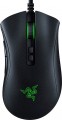 | 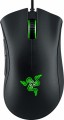 |
|---|---|---|
| Razer DeathAdder V2 | Razer DeathAdder Essential | |
| Compare prices 1 | Compare prices 127 | |
| User reviews | ||
| TOP sellers | ||
Razer Focus+ sensor. Company switches. Razer Synapse app. | 4G sensor. Company switches. Additional keys. Razer Synapse app. | |
| Product type | mouse | mouse |
| Connection | wired | wired |
| Sensor | optical | optical |
| Type | for game | for game |
Sensor and control | ||
| Sensor | Razer Focus+ | |
| Sensor resolution | 400 – 20000 DPI | 6400 DPI |
| Max. acceleration | 50 G | 30 G |
| Max. speed | 650 ips | 220 ips |
| Max. polling rate | 1000 Hz (1 ms) | 1000 Hz (1 ms) |
| Number of buttons | 6 | 4 |
| Side buttons |  | |
| DPI-button | |  |
| Switch type | optical | mechanical |
| Switches | Razer | Razer (Omron D2FC-F-7N) |
| Switch resource | 70 mln | |
| Scroll wheels | 1 | 1 |
Additional features | ||
| Optimal grip | finger, claw | palmar |
| Programmable buttons | | |
| Built-in memory | | |
| Lighting | RGB | green |
| Lighting effects | Razer Chroma | + |
| Feet material | teflon (PTFE) | teflon (PTFE) |
Connection and power supply | ||
| Cable | USB-A braided | USB-A braided |
| Cable length | 2.1 m | 1.8 m |
General | ||
| Size (LxWxH) | 127x62x43 mm | 127x73x43 mm |
| Weight | 82 g | 96 g |
| Color | ||
| Added to E-Catalog | january 2020 | august 2019 |




Compare Razer DeathAdder V2 and DeathAdder Essential
Comparing the Razer DeathAdder V2 and Razer DeathAdder Essential, several key differences stand out. The DeathAdder V2 is equipped with a sensor with a maximum resolution of 20,000 DPI, whereas the Essential has a maximum resolution of 6,400 DPI. This makes the V2 more suitable for high-performance gaming. Additionally, the V2 uses optical mechanical switches with a lifespan of 70 million clicks, while the Essential has mechanical switches with a lifespan of 10 million clicks. In terms of design, the V2 offers a more ergonomic shape and a lightweight cable, enhancing ease of use. Users report that the V2 provides more precise control and responsiveness. Overall, if you're looking for a high-quality gaming mouse, the V2 would be the better choice.
Price comparison
You may be interested in
My comparisons
Razer DeathAdder V2 often compared


Razer DeathAdder Essential often compared


Glossary
Sensor
The model of the sensor installed in the mouse. This information is indicated mainly for models equipped with high-end sensors, which are significantly superior in their capabilities to simpler solutions. Such characteristics are important primarily for gaming mice, so most of the devices for which the sensor model is specified belong to this category.
Knowing the name, you can find detailed data on the sensor and evaluate its capabilities. Note that one of the most popular brands nowadays, under which advanced sensors are produced, is PixArt ; on the market are often found, in particular, sensors PixArt 3212, PixArt 3325, PixArt 3327, PixArt 3335, PixArt 3360, PixArt 3389, PixArt 3395, PixArt 3950.
Knowing the name, you can find detailed data on the sensor and evaluate its capabilities. Note that one of the most popular brands nowadays, under which advanced sensors are produced, is PixArt ; on the market are often found, in particular, sensors PixArt 3212, PixArt 3325, PixArt 3327, PixArt 3335, PixArt 3360, PixArt 3389, PixArt 3395, PixArt 3950.
Sensor resolution
Resolution of the sensor responsible for tracking mouse movements on the work surface. Specified in DPI — dots per inch.
The physical meaning of DPI as a whole is as follows. The sensor of a modern mouse works on the same principle as the camera matrix, and consists of pixels. And DPI is the number of pixels that fall on 1 inch of the underlying surface (length or width), "visible" by the sensor.
It is believed that more DPI means a more advanced sensor and mouse in general; nowadays, models for 3500 – 5000 DPI, 12000 DPI, 16000 DPI even more are not uncommon. In a way, it is — high resolution contributes to accuracy. However, the only thing that is directly determined by this indicator is the speed at which the cursor moves across the screen: the higher the resolution of the sensor, the greater the number of pixels that the cursor will move when the mouse itself moves a certain distance. At the same time, it is worth recalling that too high a speed is even more undesirable than too low. So the real need for high DPI ( 1000 and above) arises mainly when working on large screens (4K resolution and more); for more modest displays (HD and Full HD), smaller values are often enough.
The physical meaning of DPI as a whole is as follows. The sensor of a modern mouse works on the same principle as the camera matrix, and consists of pixels. And DPI is the number of pixels that fall on 1 inch of the underlying surface (length or width), "visible" by the sensor.
It is believed that more DPI means a more advanced sensor and mouse in general; nowadays, models for 3500 – 5000 DPI, 12000 DPI, 16000 DPI even more are not uncommon. In a way, it is — high resolution contributes to accuracy. However, the only thing that is directly determined by this indicator is the speed at which the cursor moves across the screen: the higher the resolution of the sensor, the greater the number of pixels that the cursor will move when the mouse itself moves a certain distance. At the same time, it is worth recalling that too high a speed is even more undesirable than too low. So the real need for high DPI ( 1000 and above) arises mainly when working on large screens (4K resolution and more); for more modest displays (HD and Full HD), smaller values are often enough.
Max. acceleration
The greatest acceleration during movement, at which the mouse maintains normal performance; if this indicator is exceeded, the cursor may “break down” (moving to an unexpected place due to incorrect processing of data from the sensor).
The faster the mouse moves, the greater the acceleration acting on it. Accordingly, this parameter determines the sensitivity to sudden movements, the extent to which this model is able to normally perceive and process such movements. High values of maximum acceleration ( 40 G, 50 G) are important first of all in dynamic games, especially for professional e-sportsmen and advanced enthusiasts. If the mouse is bought for relatively simple tasks (working with documents, surfing the web, etc.), you can ignore this indicator.
The faster the mouse moves, the greater the acceleration acting on it. Accordingly, this parameter determines the sensitivity to sudden movements, the extent to which this model is able to normally perceive and process such movements. High values of maximum acceleration ( 40 G, 50 G) are important first of all in dynamic games, especially for professional e-sportsmen and advanced enthusiasts. If the mouse is bought for relatively simple tasks (working with documents, surfing the web, etc.), you can ignore this indicator.
Max. speed
The ips (inches per second) parameter is the linear speed of mouse movement, expressed in inches per second, at which the manipulator's sensor is able to read the surface. In top models, the maximum mouse movement speed often reaches 400-600 ips, but devices with ips in the region of 200 are more common.
Number of buttons
The number of buttons provided in the design of the mouse. However, the term "buttons" can also refer to specific hardware solutions — for example, a solid touch area used in many Apple mice counts as two buttons, because. it is divided into two working areas. But the clickable wheels, as well as the power button, are not taken into account in this calculation.
The minimum number of buttons for modern mice and other similar manipulators is two : this is the number that is necessary for comfortable work in most modern operating systems. If there are more than two keys, this means that there are additional buttons responsible for specific actions. So, even relatively inexpensive devices can be equipped with 3 – 4 buttons ; in addition to the 2 main buttons, they can have, for example, 2 side thumb keys, or 1 double/triple click button (see below). Solutions for 5 – 6 buttons are extremely popular nowadays; among them are many gaming mice, where the mentioned thumb buttons are supplemented with a double / triple click, a sniper button and/or a DPI switch (see also below about these functions). And in the most multifunctional models, 7 – 8 buttons and even more can be installed. In some cases, this number exceeds a dozen and a half; such mice are usually gaming devices designed for RPGs and other simil...ar genres where it is important to have a wide range of actions at your fingertips.
The minimum number of buttons for modern mice and other similar manipulators is two : this is the number that is necessary for comfortable work in most modern operating systems. If there are more than two keys, this means that there are additional buttons responsible for specific actions. So, even relatively inexpensive devices can be equipped with 3 – 4 buttons ; in addition to the 2 main buttons, they can have, for example, 2 side thumb keys, or 1 double/triple click button (see below). Solutions for 5 – 6 buttons are extremely popular nowadays; among them are many gaming mice, where the mentioned thumb buttons are supplemented with a double / triple click, a sniper button and/or a DPI switch (see also below about these functions). And in the most multifunctional models, 7 – 8 buttons and even more can be installed. In some cases, this number exceeds a dozen and a half; such mice are usually gaming devices designed for RPGs and other simil...ar genres where it is important to have a wide range of actions at your fingertips.
DPI-button
A separate button that allows you to change the working resolution of the sensor on the fly without going into the software settings.
Recall that the sensitivity of the mouse and the speed of moving the cursor around the screen depend on the set DPI. For different tasks, the optimal DPI values \u200b\u200bcan also be different: for example, when working with graphic materials or maps on a large screen, high sensitivity is often convenient, and in a shooting game you may need to reduce it — for accurate aiming. Setting the sensitivity using the DPI switch button is as simple and convenient as possible: it is available regardless of the currently running programme, including in situations where it is difficult or impossible to enter the software settings of the mouse (the same games can be used as an example). Also note that the DPI level indicator can be built into this button (see below).
Recall that the sensitivity of the mouse and the speed of moving the cursor around the screen depend on the set DPI. For different tasks, the optimal DPI values \u200b\u200bcan also be different: for example, when working with graphic materials or maps on a large screen, high sensitivity is often convenient, and in a shooting game you may need to reduce it — for accurate aiming. Setting the sensitivity using the DPI switch button is as simple and convenient as possible: it is available regardless of the currently running programme, including in situations where it is difficult or impossible to enter the software settings of the mouse (the same games can be used as an example). Also note that the DPI level indicator can be built into this button (see below).
Switch type
The type of switches in a mouse indicates the mechanism used under the main buttons to register a click. It affects the feel when pressing, actuation speed, lifespan, and resistance to accidental double clicks.
— Optical. Button mechanisms where the press is registered not by closing metal contacts but by interrupting a light beam. This makes them faster, less prone to wear, and almost unaffected by accidental double-click issues.
These switches are especially valued in gaming mice, where response speed and stability after a large number of clicks are crucial. For example, in shooters or MOBA games, they help achieve clear feedback without delay and contact bouncing.
— Mechanical. Classic button mechanisms where a click is registered due to the closing of metal contacts. They provide a familiar tactile feel, a well-audible click, and are widely used in both office and gaming models.
Compared to optical switches, mechanical ones are usually simpler and cheaper, but over time the contacts may wear out. For example, with active gaming or daily work, after a few years, a double click might occur instead of a single press.
— Optical. Button mechanisms where the press is registered not by closing metal contacts but by interrupting a light beam. This makes them faster, less prone to wear, and almost unaffected by accidental double-click issues.
These switches are especially valued in gaming mice, where response speed and stability after a large number of clicks are crucial. For example, in shooters or MOBA games, they help achieve clear feedback without delay and contact bouncing.
— Mechanical. Classic button mechanisms where a click is registered due to the closing of metal contacts. They provide a familiar tactile feel, a well-audible click, and are widely used in both office and gaming models.
Compared to optical switches, mechanical ones are usually simpler and cheaper, but over time the contacts may wear out. For example, with active gaming or daily work, after a few years, a double click might occur instead of a single press.
Switches
The switches in a mouse indicate which specific switches are installed under the main buttons, such as Omron, Huano, Kailh, TTC, or proprietary solutions from the manufacturer. These determine the click characteristics, actuation force, click volume, lifespan, and the likelihood of double-clicking over time.
Unlike the general switch type, which refers to the working principle—mechanical or optical—the brand and model provide a more precise understanding of the performance level. For example, two mice with mechanical switches might feel different when clicked: some may be softer and quieter, while others could be stiffer, louder, and feel more "gaming-like."
Unlike the general switch type, which refers to the working principle—mechanical or optical—the brand and model provide a more precise understanding of the performance level. For example, two mice with mechanical switches might feel different when clicked: some may be softer and quieter, while others could be stiffer, louder, and feel more "gaming-like."
Switch resource
The durability of mouse switches is measured by the number of clicks the keys can withstand before they begin to show signs of wear or malfunction. Switches can have a lifespan of several million to tens of millions of clicks. In laboratory conditions, this parameter is checked using special testing machines, which diligently press the keys the required number of times, on the basis of which a verdict is made regarding the approximate service life of the switches.