
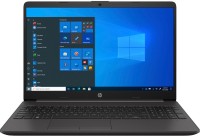
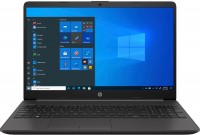
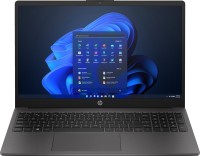
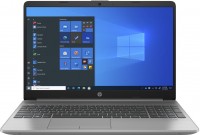
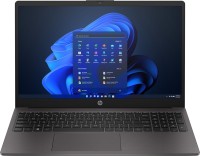
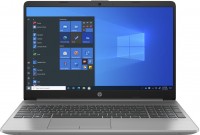
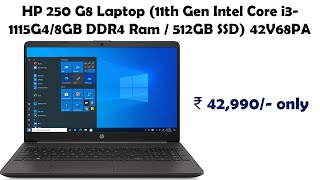
HP 250 G8
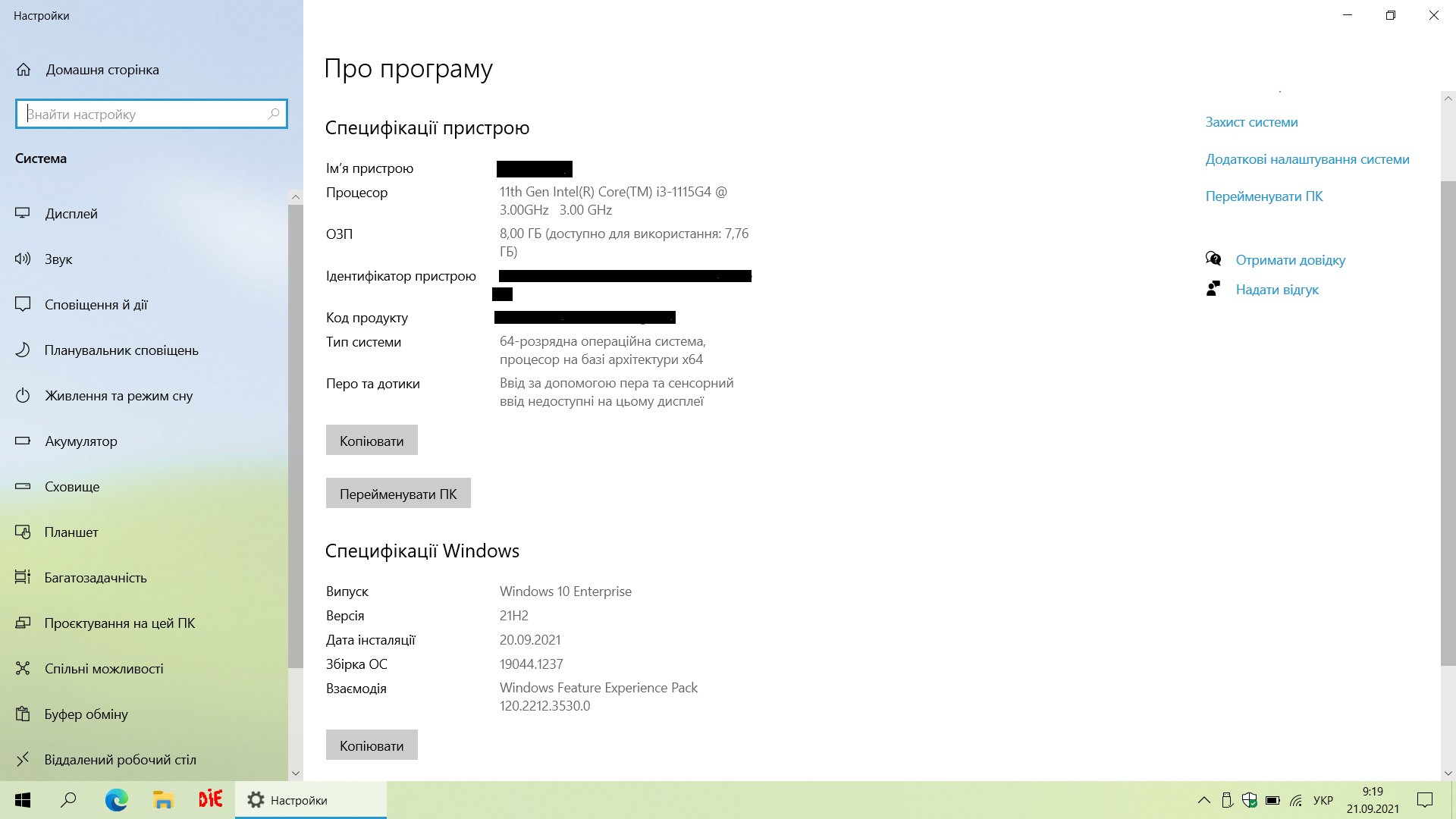
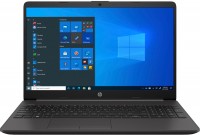 | Display:15.6 ", 1920x1080 (16:9) CPU:Core i3 / Core i7, 1035G1 - 1115G4, 1 - 3 GHz Graphics card:Iris Plus Graphics G7 - UHD Graphics Xe G4 48EUs RAM:8 GB Storage:SSD M.2 NVMe, 256 GB Laptop weight:1.74 kg |

| 2E9H9EA | Core i5 | 1035G1 | 8 GB | UHD Graphics G1 | 256 GB | Win 10 Pro | £199.00 .. £529.00 | Compare prices 3 | ||
| 2E9J1EA | Core i7 | 1065G7 | 8 GB | Iris Plus Graphics G7 | 256 GB | Win 10 Pro | £834.00 | ItBay.com | ||
| 2X7V0EA | Core i3 | 1115G4 | 8 GB | UHD Graphics Xe G4 48EUs | 256 GB | Win 10 Pro | £420.00 | ItBay.com |
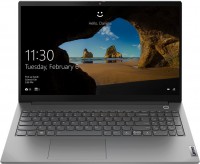
A line of inexpensive universal medium-format laptops with 15.6-inch displays of various resolutions (from 1366x768 to 1920x1080) based on SVA matrices with improved comfortable viewing angles. They have an elegant and practical outer design of the plastic case, compact dimensions and moderate weight (1.74 kg). Balanced weight and size characteristics and long battery life (more than 9 hours), due to high energy efficiency, which has the most positive effect on mobility.
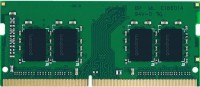
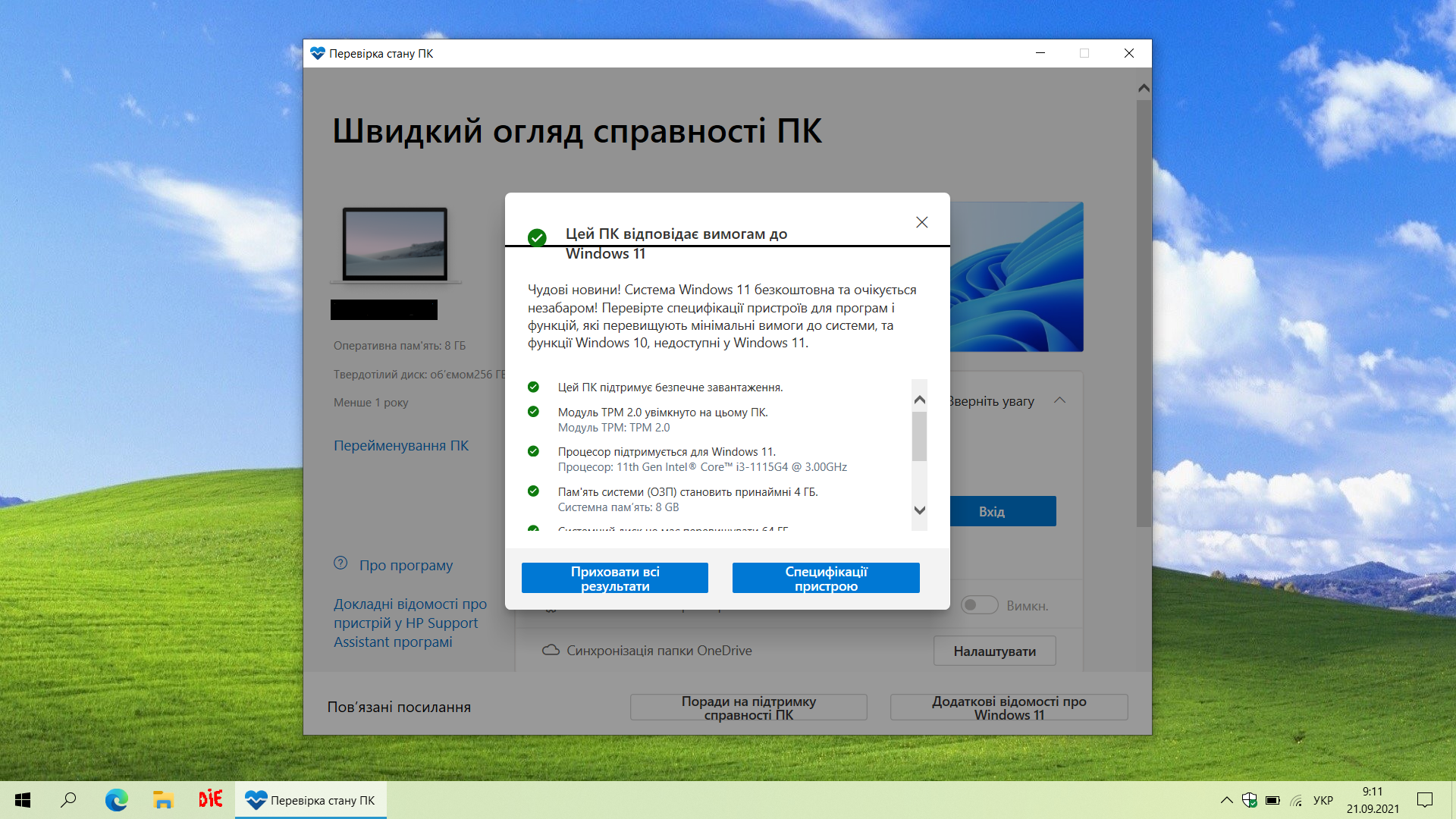
Depending on the place of a particular model in the family hierarchy, HP 250 G8 laptops are positioned as products of the basic or mid-price category. Equipped with 2- or 4-core 10th generation Core i3/i5/i7 U-series processors (Ice Lake, 10nm). The younger models are equipped with energy-efficient Intel Pentium N5030 or Celeron N4020 CPUs. The amount of pre-installed RAM can be increased up to 16 GB. The presence of a hardware security module TPM 2.0 allows these devices to be used within highly secure corporate information systems with strong data encryption. In addition, they can play the role of a home computer, a mobile multimedia entertainment centre and will be useful in learning.














0 0 3 3 |
quality for your money, ready to install Windows 11 it's not immediately obvious how to install Windows  Pavlo: use HP 250 G8 less than month Pavlo: use HP 250 G8 less than month |
I bought it for lessons, it doesn’t get warm, it works on a Pentium, it’s suitable for everyday tasks. thin and light matte screen, a little expensive Viktoriya: use HP 250 G8 more than year |
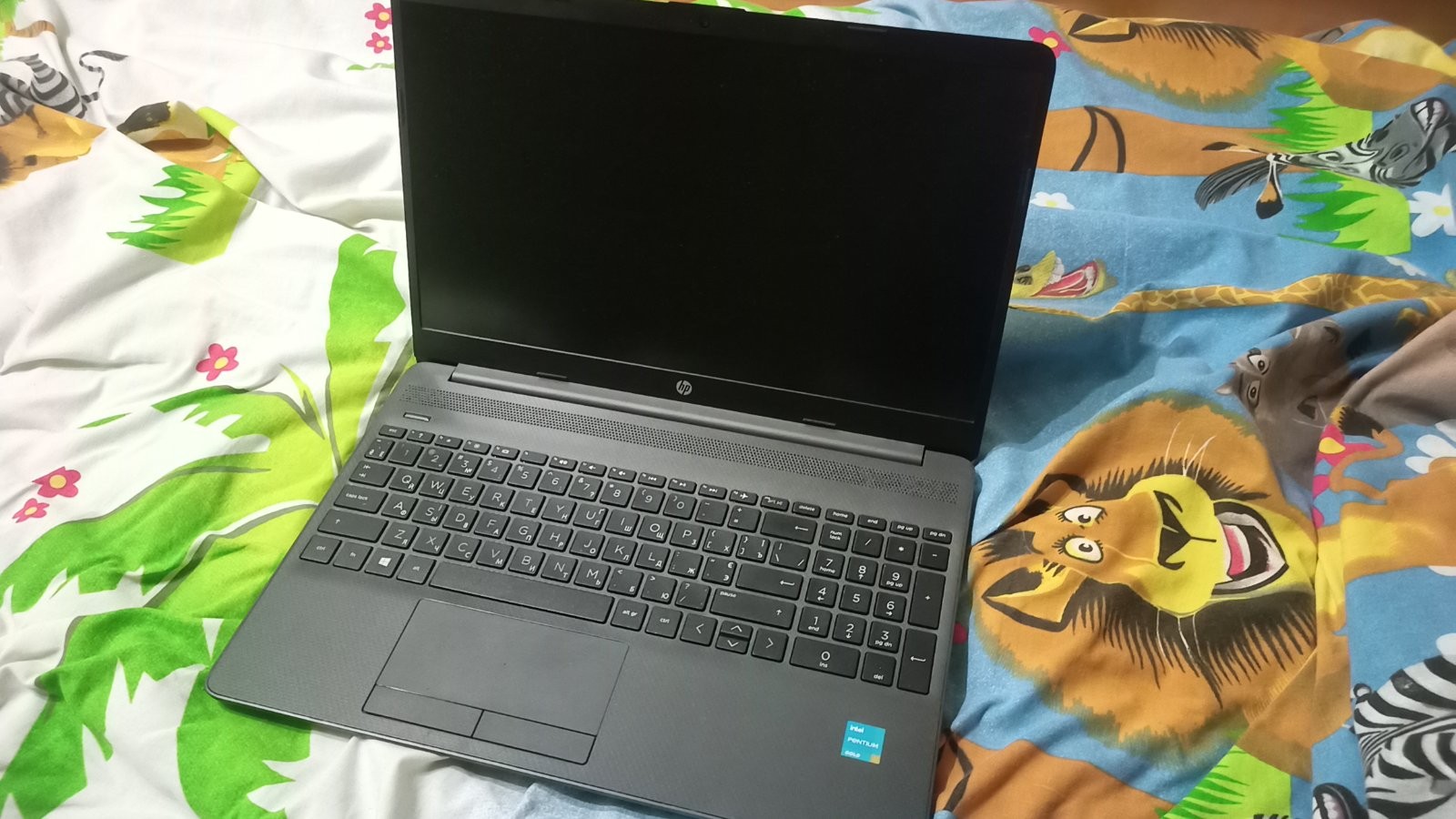
I have a model on Pentium, the laptop is fast and sturdy but Quality made, nothing wobbles. Difficult to maintain, quite noisy, and rather pricey.  Artemich: use HP 250 G8 more than year Artemich: use HP 250 G8 more than year |
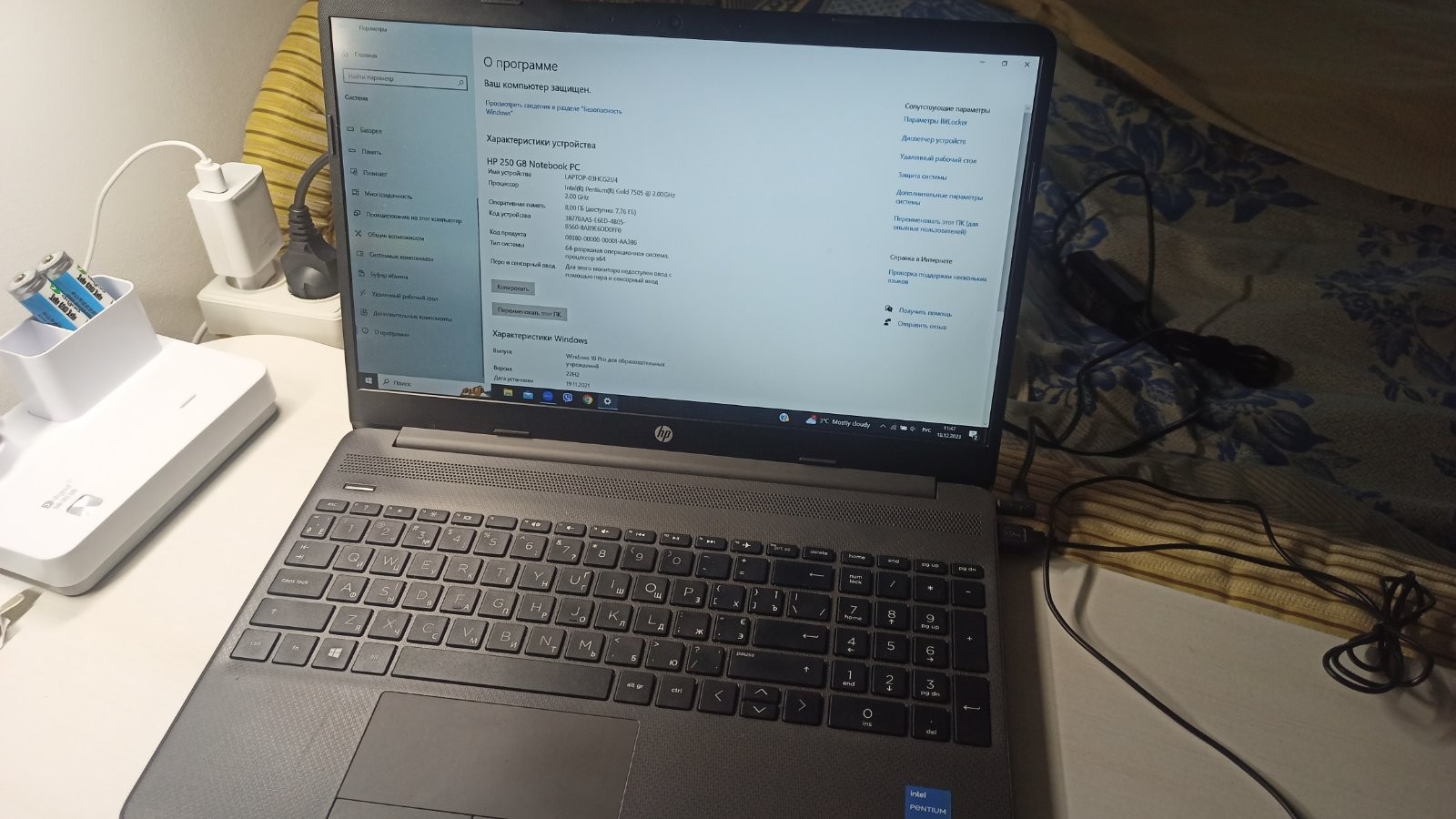



Cannot see the flash drive.
At the time of writing this message, I have not found a comprehensive explanation for this issue, so I decided to describe a few points to consider in order to save time when installing Windows.
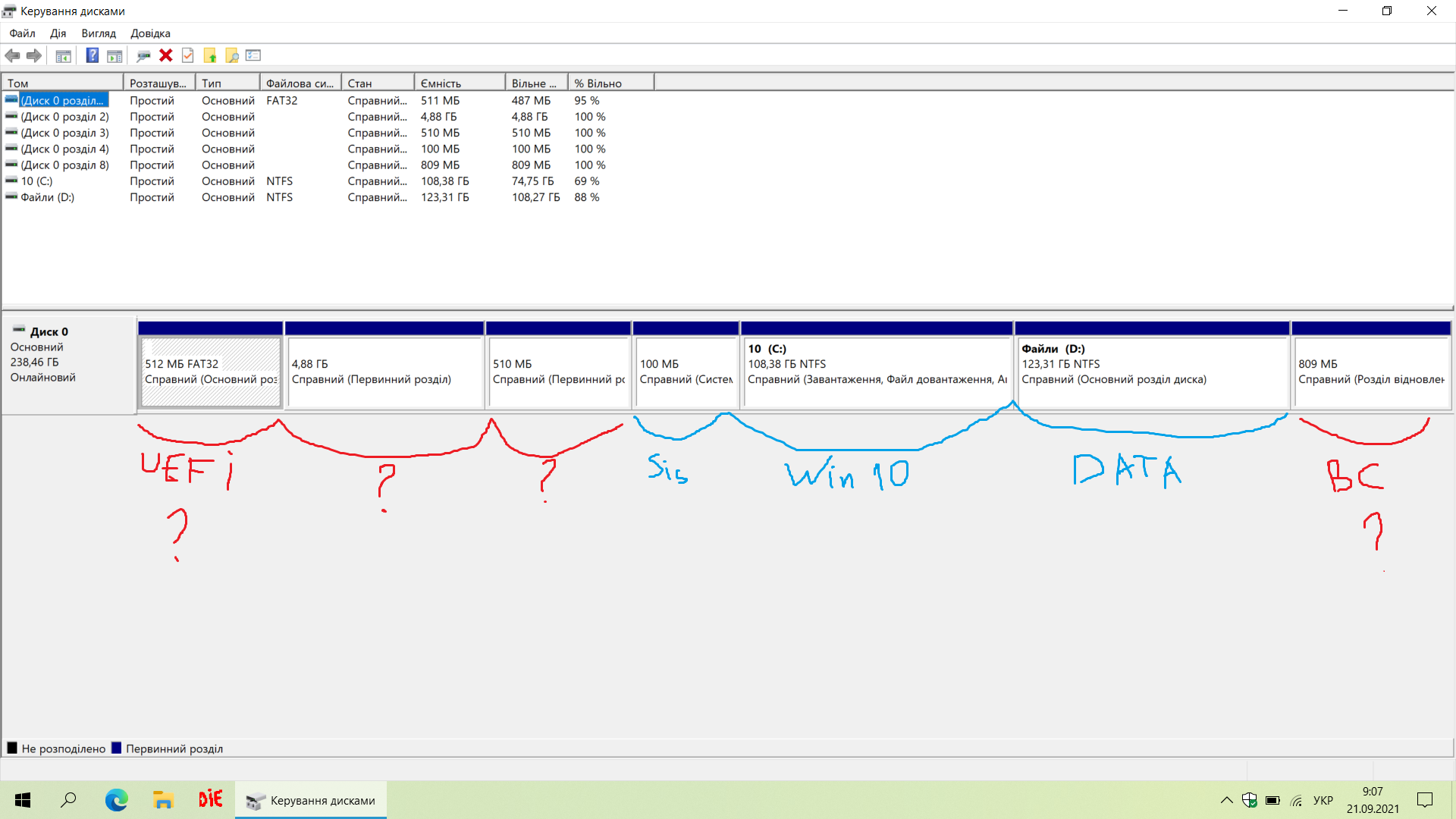
Starting point: a bootable USB 3.1 flash drive prepared using the official, albeit somewhat outdated, Windows 7 USB DVD Download Tool and the official Windows 10 Enterprise ISO file. It turned out that this option is not suitable for this laptop (due to the presence of UEFI). Possibly because this case uses NTFS file system formatting (I won't state it categorically).
To prepare the "correct" bootable flash drive, there's no need to reinvent the wheel, but use the standard Microsoft MediaCreationTool, which will write a kosher Windows 10 Pro onto it. This is the correct no-hassle path - I recommend it.
More to come (hopefully)...